
How to Use the Sales Details Report
The Sales Details report provides a quick and easy way to explore sales transactions recorded in your MonkeyPod. By filtering by time span and item type, you can generate custom reports about your sales history and review the details of individual transactions.
Where can I find the Sales Details report?
Select Reports from the main menu and look under the "Fundraising & Sales" heading to find Sales Details.
What does the Sales Details report show me?
Using the filters in the Sales Details report, you can answer all kinds of questions about your sales history. Filter by time period or by specific items sold to focus on the transactions you care about. Your MonkeyPod will display matching transactions along with a summary of the totals.
Examples
Here are just a few examples of the types of questions you might answer with this report:
- How many event tickets did we sell last month, and what was the total revenue?
- What sales were processed in the first quarter of this year?
- How many transactions included a specific item or product?
- What was our largest single sale this year, and who made it?
- What is the average sale amount across all transactions in a given time period?
Use any combination of the filters, as shown below, to find the answers you're looking for.
How do I use the report settings to find the information I need?
The "Report Settings" section at the top of the page displays the filters you can use to build your report.
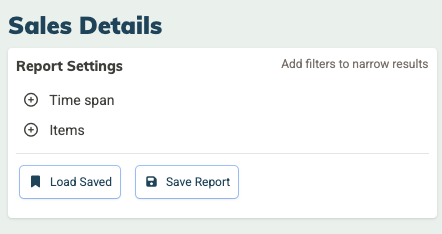
Select the + icon next to any filter to expand it and make your selections there.
The + icon turns to a - icon once you have configured a particular filter. Click the - icon to clear and collapse that filter.
The available filters are:
- Time Span: Enter a start and end date to narrow your report to a specific time period.
- Items: Filter results to show only transactions that include a specific item or product.
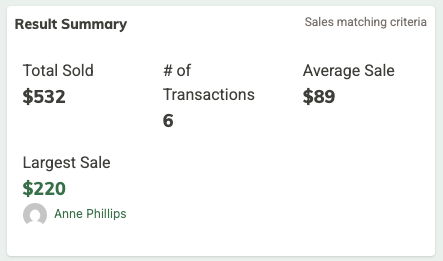
As you change your report settings, the Results Summary section updates to show you the total amount sold, the number of transactions, the average sale, and the largest sale based on your selected filters.
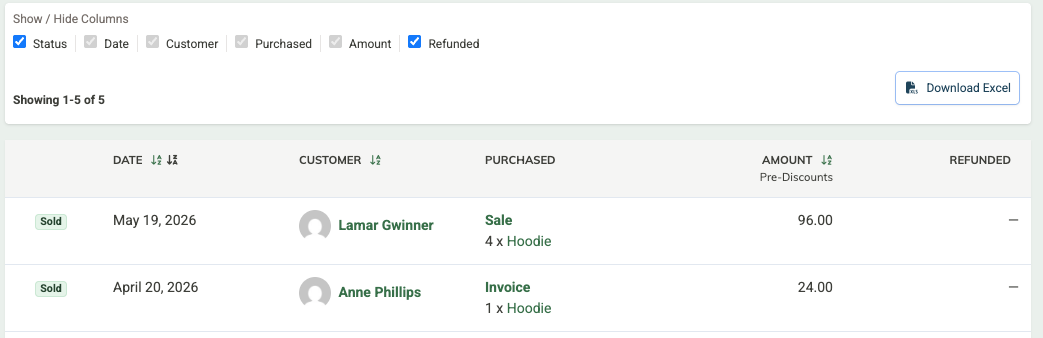
The individual transactions are listed at the bottom of the page. Use the "Show / Hide Columns" settings to choose what information you'd like displayed in the report. Available columns include Status, Date, Customer, Purchased, Amount, and Refunded.
How do I save a custom Sales Details report?
The Sales Details report can answer a wide range of questions, depending on what you're looking for. It can be really helpful to save a search once you've configured it so that you can rerun the same report later with a simple click.
To save one of these reports, configure the Report Settings panel with the filters and options you want, then click the Save Report button at the bottom of the Report Settings panel. Give the report a clear, descriptive name and save.
A note on relative timespans
If your saved report uses a relative timespan like "This Month" or "Last Fiscal Year," remember that those dates shift each time the report runs. A report saved with a "This Month" timespan in December will show December data when run in December, but January data when run in January. If you want the dates to stay fixed, choose Custom as the timespan and enter the specific dates.
How do I load a saved report?
You can easily access your saved reports later by clicking the Load Saved button at the bottom of the Report Settings panel and choosing the saved report you want to view. Your filters will populate automatically and the report will display.
How do I subscribe to a saved report?
Subscribing to a report tells your MonkeyPod to automatically run the report and email the results to you on a schedule. It's a great way to keep yourself or your team informed without anyone having to remember to pull the data manually.
To subscribe to a saved report:
- Load the saved report you want to subscribe to (see steps above).
-
Click the Subscribe to this Report icon (it looks like a small calendar).
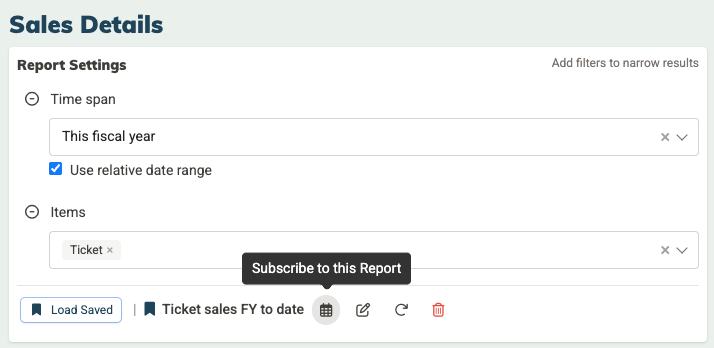
- In the Subscribe to this Report window, choose how often you'd like to receive the report:
- Every day: great for time-sensitive monitoring, like watching for large incoming gifts.
- Every Monday: perfect for weekly team check-ins or kicking off the work week with fresh data.
- The 1st of every month: ideal for monthly board updates or recurring financial reviews.
- The 15th of every month: useful for mid-month check-ins or payroll-cycle reporting.
-
If you want to include additional details about the relationships connected to each contribution or sale, expand the Relationship columns to include section and check the boxes for any fields you'd like added. You can include basic information (like address, email, and phone), financial activity (like lifetime giving or last gift amount), and even custom attributes you've set up in your MonkeyPod.
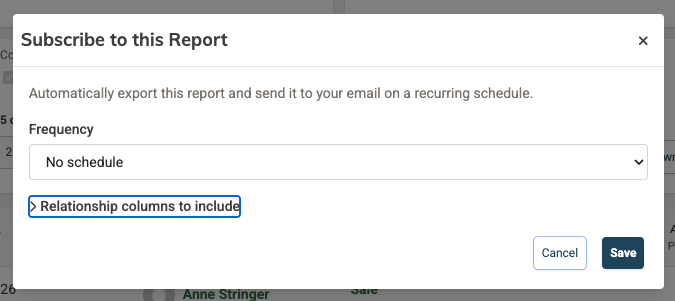
- Click Save.
Your subscription is now active. You'll start receiving the report by email on the schedule you selected.
How to discontinue a subscription
You can manually discontinue a subscription by loading the saved search, and selecting the calendar icon to change the scheduled frequency to No schedule and clicking Save.
Scheduled report emails are paused automatically in two situations:
- If your user account is no longer active: if someone leaves your organization and their MonkeyPod user account is deactivated, any subscriptions tied to that account will stop sending.
- If your organization's MonkeyPod subscription is no longer active: if your nonprofit's MonkeyPod subscription lapses, scheduled reports for all users will pause until the subscription is reactivated.
In both cases, the subscriptions are flagged as inactive rather than deleted, so they can be picked back up if circumstances change.
Frequently Asked Questions
Can I subscribe to a report I didn't create?
Yes! Saved reports are shared across your MonkeyPod, so any user with permission to view that report can also subscribe to it. Each subscription is personal, though, so your colleague subscribing to the same report doesn't affect whether you receive it (and vice versa).
Can I export my report results?
Yes! Use the Download Excel button above the report results to download your data as a spreadsheet. You'll have the option to include any additional relationship details in the export as well.