
How to Record a Customer Prepayment
Let's say a family signs their child up for a full season of afterschool programming and wants to pay the whole thing up front in September, even though the sessions run through June. Or a client hires your organization for a workshop next spring and sends a deposit today to hold the date. In both cases, you've got their money in hand, but you haven't delivered anything yet.
That's exactly what a prepayment is for. It lets you record money a customer pays in advance for goods or services you haven't delivered yet, so your books stay accurate until you actually earn that revenue.
When should I use a prepayment?
Accrual accounting rules say you can't count a payment as income until you've actually delivered the product or service it pays for. Until then, that money is a liability: you're holding funds you may still need to refund, and you owe the customer something in return.
Recording the payment as a Prepayment handles this correctly. Instead of hitting an income account right away, the funds land in a Deferred Revenue liability account, where they sit until you apply them to an actual sale or invoice. At that point, the revenue becomes real and your MonkeyPod recognizes the income.
Use a prepayment any time a customer pays you before you've delivered the goods or services, whether that's a deposit, a partial payment, or the full amount.
What do I need before I get started?
Recording a prepayment requires a Deferred Revenue liability account, and this isn't part of the default chart of accounts your MonkeyPod comes with. If you don't have a Deferred Revenue account set up yet, create it first:
- Choose Finance > Chart of Accounts.
- Select the Liability tab.
- Add a new liability account and set its subtype to Deferred Revenue.
Note: If your organization only has one Deferred Revenue account, MonkeyPod will preselect it for you automatically anywhere it's needed. If you set up more than one, you'll be asked to choose, and each account's balance is tracked separately. This matters because funds sitting in one Deferred Revenue account can't be used to pay for a sale posted against a different one.
How do I record a prepayment?
There are two ways to get there:
- From the main menu, choose Finance, and under Income & Expenses, select Record a Prepayment.
-
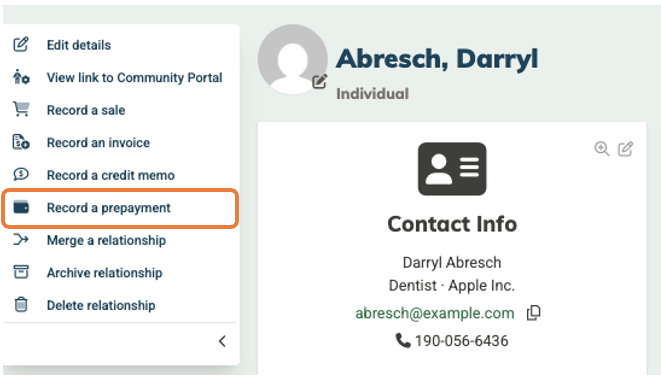
From a customer's relationship record, open the action menu at the top left side of the page and choose Record a Prepayment. (This option only appears for relationships that have a Customer role, and it conveniently preselects that customer on the form for you.)
Next, fill out the form:
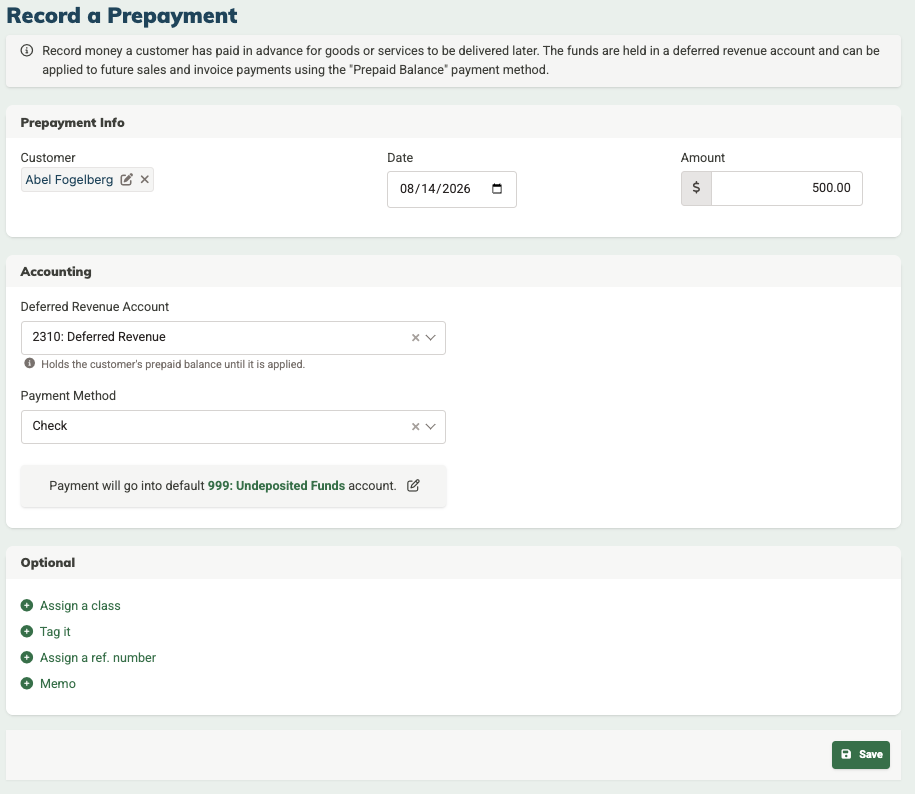
- Customer: Begin typing to search by name, email, or phone to find the relationship record for the person or entity who's paying you. Select Create new if you need to create a new relationship first.
- Date: defaults to the current day, but you can change it as needed.
- Amount: the dollar amount the customer is paying.
- Deferred Revenue Account: the liability account that will hold this balance until you apply it to a sale or invoice.
- Payment Method: Check, Credit Card, EFT/ACH, Cash, or Other. This determines where the money lands: choosing Credit Card adds a Transaction Processing Fees field (the customer is credited the full amount and the fee posts separately), and the payment defaults to your Payouts Receivable account. Other payment methods default to Undeposited Funds. You can change either default account using the pencil icon next to it.
- Memo: an optional note for your own records.
You can also assign a class, add a tag, or attach a reference number under the optional section. When everything looks right, select Save.
How do I view or edit a prepayment?
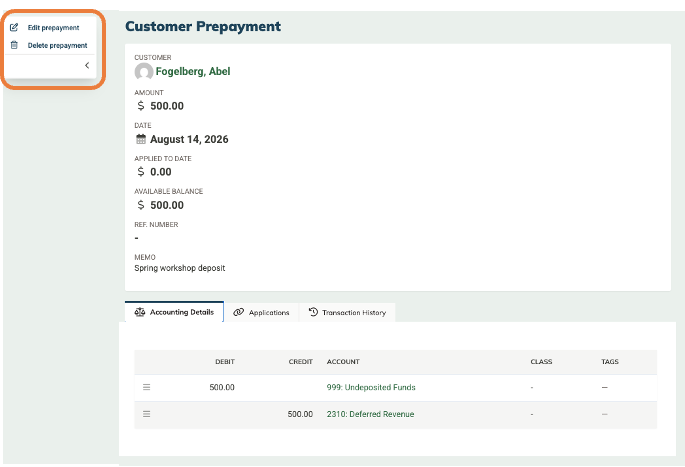
Once you've saved a prepayment, it is stored as a transaction in your MonkeyPod. Its transaction page shows the Amount, how much has been Applied to date, and the Available balance still remaining.
An Applications tab lists every sale or invoice payment that has drawn on it, so you always know exactly where the money went.
To make changes, select the edit option in the action menu (just like you'd edit an expense). Keep in mind that once any part of a prepayment has been applied, you can no longer change the customer, and you can't reduce the amount below what's already been applied.
How do I spend a prepaid balance?
Once a customer has money sitting in a Deferred Revenue account, you can put it toward a future sale, donation, or invoice payment using the Prepaid Balance payment method.
-
On a sale: when recording a sale for that customer, choose Prepaid Balance from the Payment Method dropdown in the "Accounting & Tracking" section. A Paid from Account field appears where you select which Deferred Revenue account to draw the funds from.
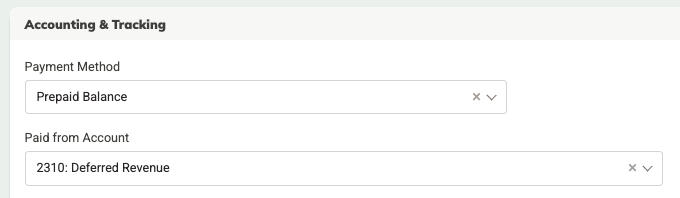
- On an invoice payment: open the invoice and select Record Payment in the Payments Received tab. Select Prepaid Balance from the Payment Method options, and choose the correct Deferred Revenue account in the Paid from Account field.
-
On a donation: when recording a donation from a supporter with a prepaid balance, choose Paid from Prepaid Balance as the donation type. In the Accounting section, confirm that the correct Deferred Revenue account is selected.
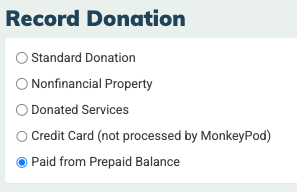
MonkeyPod automatically applies the customer's available funds oldest-to-newest within the account you chose, so you don't have to track which specific prepayment covers which sale.
What if there isn't enough available?
If the customer doesn't have enough unapplied funds in the Deferred Revenue account you selected, MonkeyPod will reject the transaction. If they happen to have funds available in a different Deferred Revenue account, the error message will tell you which account and how much is sitting there, so you know exactly where to look instead of guessing.
How do I refund a sale that was paid with a prepaid balance?
You can refund a sale by choosing Refund from the action menu on the sale transaction page. When you refund a sale that was paid using Prepaid Balance, you'll be asked to choose how the refund should work:
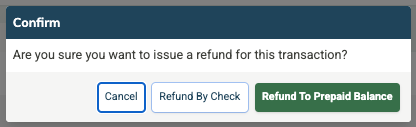
- Refund by Check: the sale is shown as refunded, and MonkeyPod records a check transaction to document that the cash is actually going back to the customer, and the prepaid balance stays spent.
- Refund to Prepaid Balance: the money goes back into the customer's prepaid balance so they can spend it again in the future.
Frequently Asked Questions
Do I need to be a bookkeeper to use this?
Recording the prepayment itself is straightforward: pick a customer, an amount, and an account. The accounting concept behind it (deferred revenue) is worth understanding, but you don't need to be an accountant to use the feature correctly. If you're not sure which account to choose, it's worth checking with whoever manages your books.
How can I find the prepaid balances for customers in my MonkeyPod?
Prepaid balances show up like any other financial transaction in MonkeyPod. This means you can use the Transaction Search, Transaction Log, or view the Transactions tab on a relationship page to find prepaid balances for a customer. When using a prepaid balance on a sale, donation, or invoice payment, you'll be alerted if the balance doesn't cover the amount of the transaction.