
How to Set Up and Customize Donation Receipts
Your donation receipt is often the first way a donor hears from you after they give, so it's worth making sure it reflects the tone and style of your organization. In a few minutes, you can choose who your receipts come from, customize the wording, and add your logo.
You'll usually set this up once and only come back to it when something changes, like a new executive director or a special campaign. For everyday tasks like sending, printing, and tracking receipts, see How Donation Receipts Work in MonkeyPod.
This article covers:
- What can I customize on my receipts?
- Who shows up as the sender on receipts?
- How do I include a custom thank you message on receipts?
- How do I save receipt wording to reuse (boilerplate text)?
- How do I change the closing line?
- How do I add my logo and colors?
- Frequently Asked Questions
What can I customize on my receipts?
Some basic information and tax language on the receipt remains fixed, but there are many other ways to customize your receipts. Here's a quick overview. Each setting is covered in more detail below. If you're setting up your receipts for the first time, work through the sections in this article, and when you're done, preview a receipt to see how it all comes together.
To get to Organization Settings, go to My MonkeyPod > Organization Settings. On the Relationships tab, each setting is a section you can open by name.
| What | Where to set it | Applies to |
|---|---|---|
| Default sender | Organization Settings > Relationships, under Fundraising | All receipts that don't come from a fundraising page |
| Saved receipt wording (boilerplates) | Organization Settings > Relationships, under Fundraising | Available on every page, form, and receipt you send by hand |
| Intro Text | Each fundraising page and donation form | Receipts for gifts made through that page or form |
| Closing line | Organization Settings > Relationships, under Transactional Email | Every email MonkeyPod sends for you that ends with a signature |
| Logo and colors | Organization Settings > Public-Facing Pages | All receipts |
| Campaign logo | Each fundraising page and donation form | Receipts for gifts made through that page or form |
Who shows up as the sender on receipts?
Every receipt is sent under the name of a MonkeyPod user in your organization. Replies go to that person's email address, and their email signature appears at the bottom. You need to have one default sender, and then you can optionally choose a different sender for specific fundraising campaigns.
Set your default receipt sender
- Go to My MonkeyPod > Organization Settings and select the Relationships tab.
- Under Fundraising, open Receipt Sender.
- Choose from the users in your MonkeyPod to select a Default sender for donation receipts.
Choose a different sender for one fundraising page
There may be times when you want receipts to come from someone other than the default sender. Say your executive director sends most receipts, but the education director is running the summer camp scholarship campaign and wants the receipts to come from her. In this example, you would edit the scholarship campaign's fundraising page, select Giving Options, and under Receipts, choose the education director for Receipts Sent From. All receipts for donations through the scholarship campaign page will then come from the education director; all other receipts from the organization will still come from the executive director. Learn more about setting up fundraising pages in How to Make a Fundraising Page.
Receipts sent manually
When you manually record a donation, as you'd do for a check received in the mail, the receipt is not automatically sent. It's sent only when you select the Send receipt option on the donation page. For these manually initiated receipts, the sender is always the person who selects the Send receipt option. Learn more about how to manually send receipts in How Donation Receipts Work in MonkeyPod.
How do I include a custom thank you message on receipts?
MonkeyPod starts you off with standard thank-you wording, but you'll probably want to make it your own, either for your whole organization or for specific campaigns.
You can customize the introductory text that appears at the top of the receipt, before the tax details.
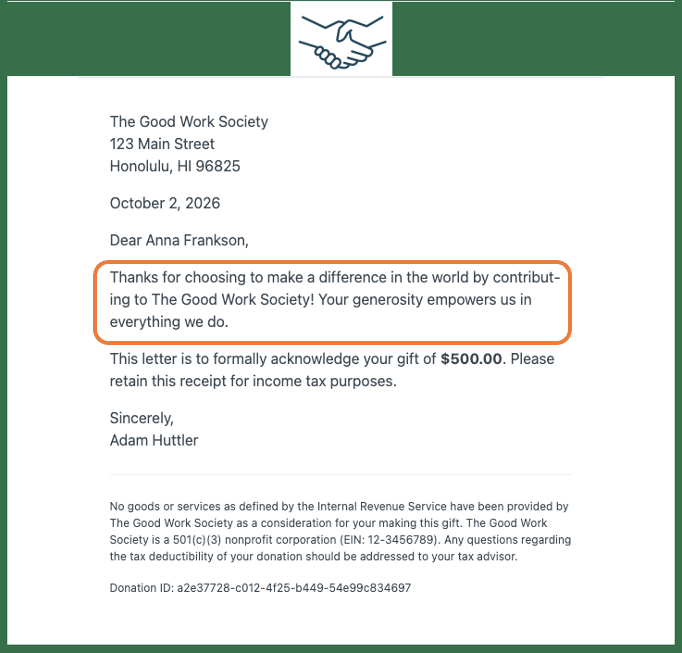
To customize the default text for your organization:
- Choose My MonkeyPod > Organization Settings and select the Relationships tab.
- Under Fundraising, choose Receipt Boilerplate.
- Select the edit icon for the boilerplate marked Default. This changes the wording new pages and forms start with. It won't change pages or forms you've already set up.
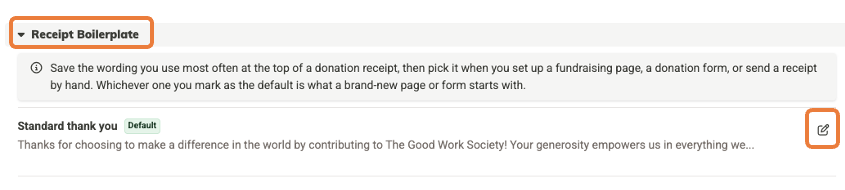
Each fundraising page and donation form can have its own custom introduction, so every campaign can thank donors in its own way. New pages and forms start with your default saved wording (see the next section), so you only need to change it when you want something different.
To customize the receipt introduction for a specific fundraising campaign:
- Fundraising page: open the page's settings, go to Giving Options, and find Donation Receipt Intro Text under Receipts.
- Donation form: open the form's settings and find Intro paragraph in donation receipts.
Add formatting to your custom introduction
The intro text uses Markdown, which is a simple way of adding formatting with symbols. The toolbar includes the most common formatting options (bold, italic, link, and bulleted list), but there are many more to choose from. Select the Markdown link to see all of the options.
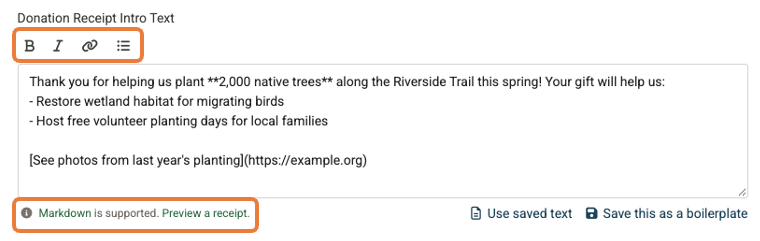
Select Preview a receipt to see how it all comes together.
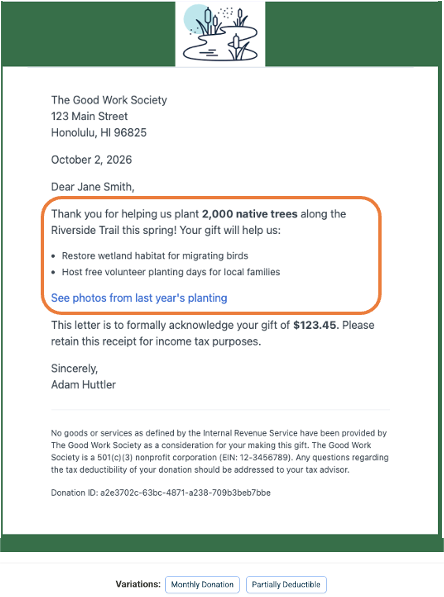
Tip! Notice the buttons below the preview that let you view different variations of the receipt for monthly donations and partially deductible donations.
How do I save receipt wording to reuse (boilerplate text)?
If you use the same "thank you" language repeatedly, save it as a boilerplate. Then you can drop it into a fundraising page, a donation form, or a receipt you're sending manually, without retyping or copying and pasting.
Your MonkeyPod comes with one boilerplate to start, "Standard thank you," set as your default.
Add a boilerplate
- Go to My MonkeyPod > Organization Settings and select the Relationships tab.
- Under Fundraising, open Receipt Boilerplate.
- Select Add Boilerplate.
- Give it a Name (only your team sees this, so something like "Gala thank you" works well).
- Write the Receipt intro text, using the toolbar for any formatting.
- Select Add Boilerplate to save it.
You can also save wording while you're editing a page's or form's intro. Select Save this as a boilerplate to save what you've just written.
Manage your boilerplates
Each boilerplate in the list has three options:
- Edit: update the name or wording.
- Make this the default: the default is what every new fundraising page and donation form starts with. Only one boilerplate can be the default.
- Archive: hides the boilerplate from the list. You can bring it back at any time using the Show archived link at the bottom of the Receipt Boilerplate section. Once an archived boilerplate is shown, select the Restore icon next to it.
Use a boilerplate
On a fundraising page, a donation form, or the Send receipt window on a donation, select Use saved text and choose a boilerplate. Its wording drops into the intro box, where you can tweak it for that page or receipt. If the box already has text in it, MonkeyPod checks with you before replacing it.
Note: A boilerplate is a starting point, not a live link. Editing a saved boilerplate won't change pages or forms that already use its wording. To update them, open each one and choose the boilerplate again.
How do I change the closing line?
By default, receipts end with "Sincerely," just above the signature. To use something else like "With gratitude," or "Warmly,":
- Go to My MonkeyPod > Organization Settings and select the Relationships tab.
- Under Transactional Email, select Closing.
- Type your desired closing and select the checkmark to save it.
The closing appears exactly as you type it, punctuation included. So if you'd like a comma after "Warmly", type the comma.
Good to know: There's one closing used for your whole organization on every email MonkeyPod sends for you that ends with a signature, including receipts, pledge letters, invoices, and payout notices.
How do I add my logo and colors?
Your organization's logo appears at the top of every receipt, and your color scheme is used across receipts and other donor-facing content.
- Go to My MonkeyPod > Organization Settings and select the Public-Facing Pages tab.
- Under Logo, select Replace Logo and upload a PNG or JPG file.
- Under Color Scheme, choose your colors.
Changes here apply to all your receipts, unless a fundraising page or donation form has its own logo (see below).
How can I change the logo for a specific campaign?
Say you're running a 25th-anniversary appeal with a special anniversary logo. You can give that one fundraising page or donation form its own logo, and receipts for gifts made through it will use the anniversary logo instead of your usual one.
- Fundraising page: open the page's settings, go to Visual Design, and upload an image under Page Logo. If your public pages show a top bar with your logo, the page shows its own logo there too.
- Donation form: open the form's settings and upload an image under Receipt Logo (Optional). This changes the receipts only; the form itself looks the same.
When the campaign wraps up, select Remove logo (or Delete Logo on a donation form) to go back to your organization's logo.
Frequently Asked Questions
Who can change these settings?
Anyone with access to Organization Settings can change the sender, boilerplates, closing, and logo. Anyone who can edit a fundraising page or donation form can change its intro text, sender, and campaign logo.
I updated a boilerplate. Why didn't my fundraising page change?
Boilerplates are starting points. When you choose one, its wording is copied onto the page or form. To use your updated wording, open the page or form, select Use saved text, and choose the boilerplate again.
Can I add images to my receipt intro?
Not currently. You can add bold and italic text, links, bulleted lists, and other Markdown-based formatting.
Can I remove the default receipt sender?
No. Your organization always needs a default sender, so there's someone to send receipts for gifts that don't come through a fundraising page. You can change who it is at any time.