
How to Customize Fundraising Pages to Match Your Website
Heads up: this is an advanced feature. Advanced design is built for people who are comfortable with CSS, such as your web designer or whoever manages your website. If that's not you, no problem: the built-in templates already look great embedded on their own.
Advanced Design is not an option for pages using the Old School template or the Donation Form (Embeds) from prior to November 2026.
Your website has its own look: its colors, its fonts, maybe square buttons or a soft background. When you embed a MonkeyPod Fundraising Page on that site, you want the giving form to feel like it is a natural extension of your site. So if you find you want to adjust the look of your embedded pages, read on to learn about the Advanced Design options.
What are the Advanced Design options?
The Advanced Design options let you change the CSS of the individual parts of an embedded Fundraising Page, such as the page title, the donation options, the amount tiles and the primary button, etc.
A few things to know up front:
- Only the embedded page changes: you aren't modifying the template for other pages.
- Changes cannot be shared across templates.
How does the CSS work here?
If you've written CSS before, this will feel familiar, with one twist: you only write declarations, not selectors. MonkeyPod already knows which part you're styling, so you just say how it should look.
A declaration is one line with a property, a colon, a value and a semicolon:
background-color: #1f3a5f;
border-radius: 0;
- One per line: put each property: value; pair on its own line.
- No selectors or braces: skip .button { ... }. Just the lines that go inside the braces.
- Change, don't delete: each part comes with default lines. To change one, give it a new value. Deleting a default line won't save, and MonkeyPod will tell you what to enter instead (for example, border-radius: 0 rather than removing border-radius).
How do I customize the design?
- Go to Fundraising > Fundraising Pages and open the page you've embedded.
- Select the Embed tab.
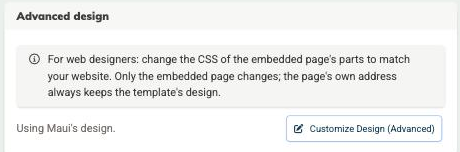
- In the Advanced design section, select Customize Design (Advanced).
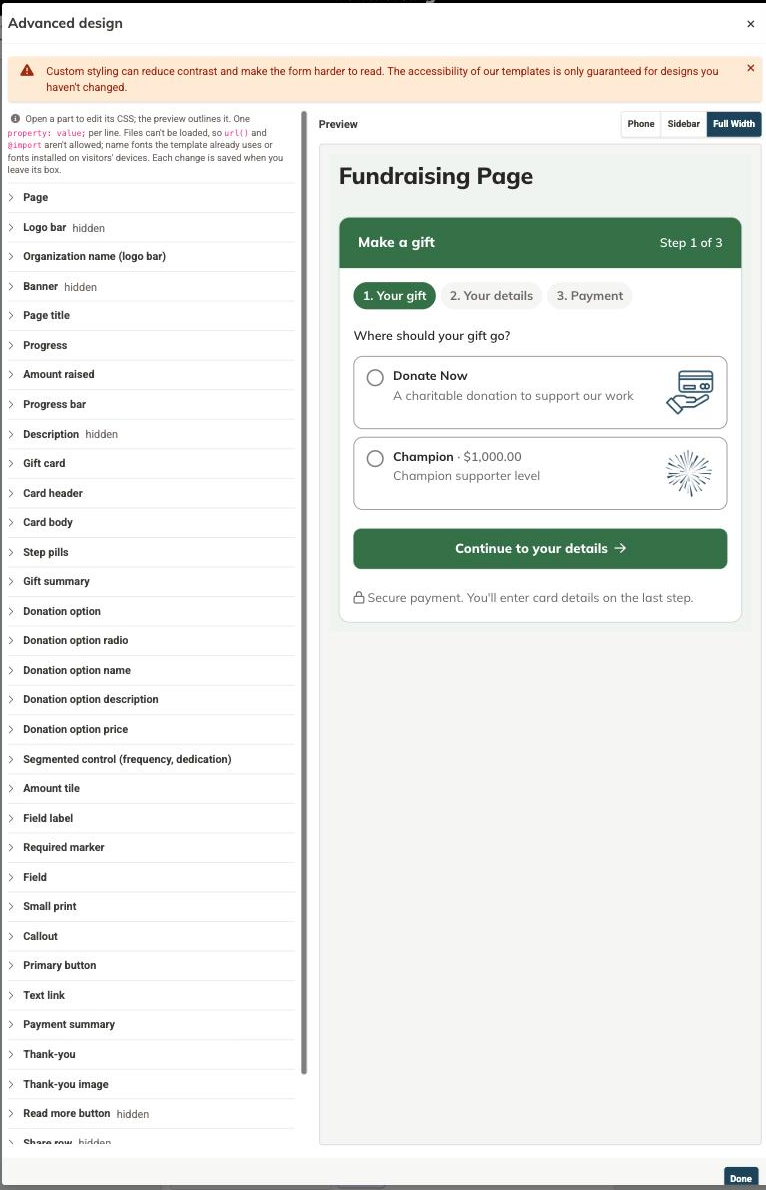
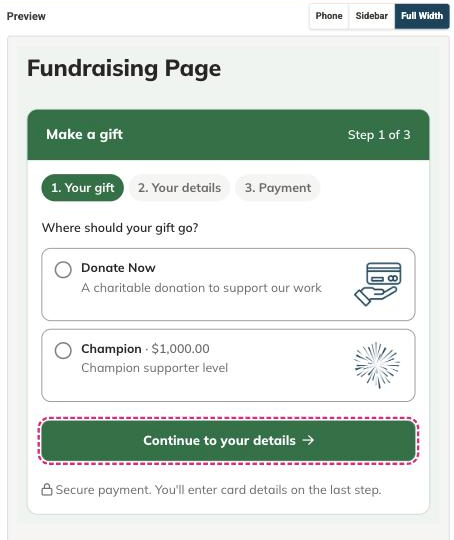
- The Advanced design editor opens, with the page's parts listed on the left and a preview on the right. Select a part (for example, Primary button) to open its CSS box. The preview outlines that part so you can see exactly what you're changing.
- Edit the declarations. The preview updates as you type.
- Click outside the box to save that change. Each part saves when you leave its box.
-
Use Phone, Sidebar and Full Width above the preview to see how the form looks in different spaces on your website.
- Select Done when you're finished. If a box has an error, the editor stays open so you can fix it.
A note on accessibility: our templates are designed to be easy to read and use, including for donors who use a keyboard or have low vision. Custom styling can reduce contrast and readability, so those guarantees apply only to designs you haven't changed. Check that text is still easy to read against its background.
What can I change?
A few examples
On the Maui template, you'll see parts like Page, Page title, Progress bar, Gift card, Card header, Donation option, Amount tile, Field label, Field, Primary button, Text link and Thank-you.
Some parts are marked hidden. These are hidden by default on embedded pages to keep the form compact: Logo bar, Banner, Description, Read more button, Share row and Other pages (campaign ended). You can bring any of them back.
Here are a few common changes. In each one, find the matching line in the part's box and change its value.
Match your button color. Open Primary button and change the background and border colors:
background-color: #1f3a5f;
border-color: #1f3a5f;
color: #ffffff;
Square off the corners. Open Amount tile, Donation option, Field or Primary button and change:
border-radius: 0;
Use your website's font. Open Page and change the font family. Choose a font the template already uses or one installed on your visitors' devices (more on that below):
font-family: Georgia, 'Times New Roman', serif;
Show the page description. Open Description (marked hidden) and change display: none; to:
display: block;
Tip! Change one or two things at a time and check the preview at each width. Small tweaks (button color, corners, font) usually do most of the work of matching your site.
What isn't allowed?
To keep the giving form safe for your donors, a few things won't save. You'll see a plain message explaining what to change.
- Loading files: url(...) and @import aren't allowed. That means you can't load a custom web font or a background image.
- Selectors and blocks: braces { }, @ rules, and the characters <, > and \ aren't accepted. Stick to property: value; lines.
- Certain legacy properties: expression(...), behavior and -moz-binding aren't accepted.
- Very large designs: there's a size limit of about 20 KB of CSS per page, which is far more than most designs need.
How do I undo my changes?
You can undo your changes at various levels:
-
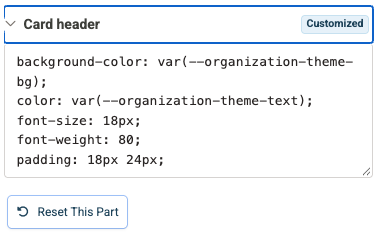
Undo one part: You'll see a Customized flag next to any section that has modifications. Select that section to expand it and select Reset This Part to undo your changes there.
- Undo everything: select the Reset all button in the lower right corner of the Advanced Design screen to return every part to its defaults.
- Switching templates: if you change the page's template on the Visual Design tab, MonkeyPod asks you to confirm first, then discards your customizations and starts from the new template's defaults.
Important: switching a page's template discards all of its Advanced design changes, and this can't be undone. If you've put real work into a design, copy your CSS somewhere safe before you switch.
Frequently Asked Questions
If I'm using MonkeyPod's Fundraising Page on its own, as well as embedded in my website, will my changes here affect the Fundraising Page itself? No. Advanced design only changes the embedded version on your website. Anyone who visits the page's own web address sees the template's standard design.
Can I use the custom font from my website? Not currently, since fonts can't be loaded from a file or link. You can name a font the template already uses, or a common font installed on most devices (like Georgia, Arial or Verdana). Add a fallback, such as serif or sans-serif, in case a visitor doesn't have it.
Why don't I see Advanced design? Advanced design is available only for pages on the Maui, Hawaiʻi or Kauaʻi templates. If your page uses Old School, switch its template on the Visual Design tab first.
Can I style the card and bank payment fields? Not currently. Those fields are provided securely by our payment processor, Stripe, inside their own frame, so they keep their standard look.
Do my changes stay if I copy the page? Yes. Copying a page or adding a sub-page keeps its design.
Can I see who last changed the design? Yes. On the Fundraising Page's Embed tab, in the Advanced Design section, you'll see who made the last changes and when.
We're a fiscally sponsored project. Can we use Advanced design? Yes! Your fiscal sponsor's disclosure always keeps its own colors and size, and it isn't one of the parts you can edit. It must stay visible and readable on your embedded page, so double-check it after you change background or text colors.
Does this work with my older Donation Forms (Embeds)? No. Advanced design is for embedded Fundraising Pages. Donation Forms (Embeds) keep their own design settings.