
Learn About Conversion Tracking for Fundraising Pages
You shared your year-end appeal in your newsletter, on social media, and on your website. Lots of people have clicked the link, but how many of them actually gave, and where did the others drop out?
The Online Conversion report provides the answers! It follows each visit to your fundraising pages, from the time the form loads to the time when someone gives (or doesn't), so you can see where donors drop off and what you might change to turn more lookers into donors.
Note: This report does not apply to the older Donation Forms (embeds) from prior to November 2026. If you'd like to track conversions on your donation forms, be sure to replace them with the newer embeddable fundraising pages. See How to Embed a Fundraising Page on Your Website.
Where can I find the Online Conversion report?
In your main menu, go to Fundraising > Research & Reports > Online Conversion. (You can also find it in the Fundraising & Sales section of the Reports menu.)
What does the Online Conversion report track?
Every time someone loads one of your Fundraising Pages, MonkeyPod counts it as a visit. This includes visits to the page itself and visits to the page embedded on your website.
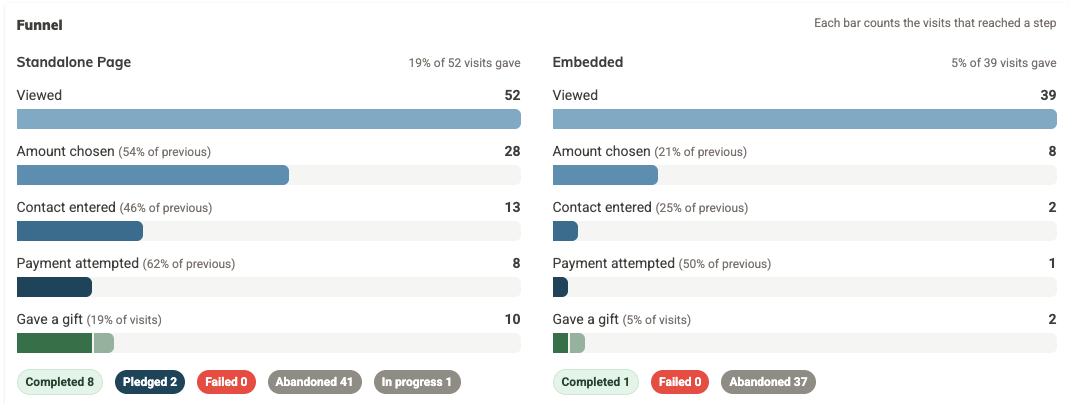
Each visit moves through the same steps as the supporter progresses through the donation form:
- Viewed: the giving form loaded in the visitor's browser.
- Amount chosen: they picked a donation amount.
- Contact entered: they filled in their contact details and continued.
- Payment attempted: they tried to pay.
- Gave a gift: the payment went through, either Completed (paid) or Pledged (they chose to send payment offline).
A visit that has stalled (without any forward movement) for an hour counts as Abandoned. Visits with recent activity show as In progress.
How do I use the report to understand donors' interaction with our fundraising pages?
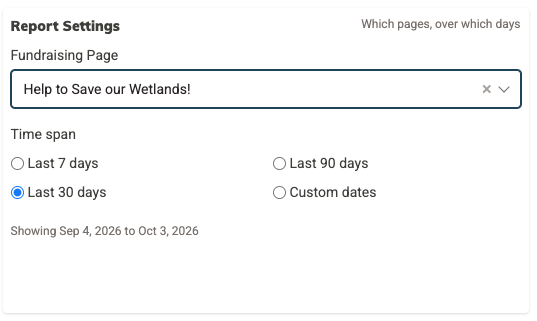
First select the page(s) and date range that you're interested in learning about.
Under Report Settings:
- Fundraising Page: leave it set to All Fundraising Pages, or pick a specific page to focus on.
- Time span: choose Last 7 days, Last 30 days, Last 90 days, or Custom dates.
Next, use the Result Summary and the Funnel information (described below) to help you make sense of your supporters' activity.
Result Summary
The Result Summary tallies the data for the chosen pages and time frame (combining totals for stand-alone fundraising pages, and pages embedded in your site).
- Visits: how many times the form loaded, and how many are still in progress.
- Gifts: how many visits ended in a gift, split into paid and pledged.
- Conversion rate: the share of visits that successfully ended in a gift.
- Left details, did not give: visitors who entered their contact details but didn't finish. These are people you may want to follow up with, and you'll find each one on the Details tab.
Using the Funnel to understand conversions
The funnel shows how many visits reached each step, and what percent progressed from the step before. Here you can see where potential donors fell away.
Visits to stand-alone fundraising pages and embedded pages get their own funnel since the user experience interacting with the two versions of the form can be different.
Totals for how many visits were Completed, Pledged, Failed, Abandoned or still In progress appear below each funnel chart.
How do I know if my rates are better or worse than what I should expect?
Under each funnel, a table displays your rates next to typical rates for each step. It shows what percentage of visitors got to the following steps:
- Chose an amount: shown as a percentage of all visitors.
- Entered contact details: shown as a percentage of those who chose an amount.
- Went on to pay or pledge: shown as a percentage of those who entered contact details.
- Payment went through: shown as a percentage of payment attempts.
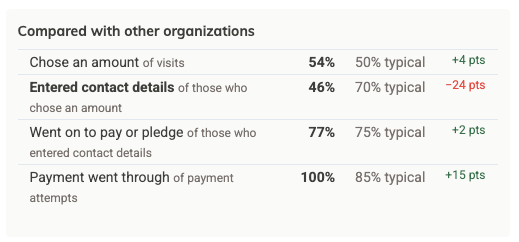
The far right column shows how many percentage points above or below typical you are. A big negative number indicates that you should really pay attention to that step because there's something that's causing a disproportionate number of visitors to drop off.
How can I see which supporters engaged with the form?
The Details tab lists every visit in your date range, showing the newest ones first. To narrow the list, use the filters at the top, similar to the main report page:
- Include dates: a start and end date.
- Fundraising Page: one page, or any page.
- Status: for example, Stopped after choosing an amount, Payment failed, or Left without giving. There are multiple other statuses to choose from.
| Column | What it shows |
|---|---|
| When | The date and time the visit started. |
| Source | The Fundraising Page, and whether it was on the page itself or embedded. Select the page name to open its settings in a new tab. |
| Amount | The amount and frequency chosen for the gift, if they got that far. |
| Contact details | The visitor's name, email, and phone, if they entered them in the form and continued. Otherwise, Not captured is displayed. |
| Relationship | The matching relationship in your MonkeyPod, if there is one. |
| Status | Where the visit ended up, such as Completed, Pledged, Abandoned or In progress, plus the furthest step reached. |
| Gift | A link to the donation or pledge, if one was made. |
To get a spreadsheet of these details, select the Export button in the top right. The CSV is emailed to you.
How can I use this report to improve my online fundraising?
Look for the step in the funnel with the biggest drop, or the biggest negative number in Compared with other organizations, and start there. Here are a few examples:
- Few visitors choose an amount: make sure your page's title and description clearly say what the gift will do, and check that your donation options and suggested amounts feel within reach based on your supporters' giving history.
- Many choose an amount but don't enter contact details: maybe you're asking too many questions? Review the required fields on the page's Data Collection tab and keep only what you really need.
- Many enter details but don't pay: make paying easy. If your page is embedded, add your website to Allowed Domains on the page's Embed tab so donors can use Google Pay or Apple Pay. (See How to Embed a Fundraising Page on Your Website.)
- Payments fail often: check the Details tab for failed payments. Card declines are usually on the donor's side, so a quick, kind follow-up often saves the gift.
Here's how that might look. The Riverside Food Bank sees that their embedded year-end appeal gets plenty of visits, and most visitors choose an amount, but only about a quarter of those go on to enter contact details. Their page asks for a mailing address and phone number. They make both optional on the Data Collection tab, check the report again a few weeks later, and see more visitors making it through to give.
Frequently Asked Questions
Do I need to turn anything on to start tracking?
No. Visits to your Fundraising Pages are tracked automatically.
When are a visitor's contact details saved if they don't give?
Only when they enter their details and select the button to continue. Anything typed but not submitted is never saved. Contact details on visits that didn't end in a gift are cleared after 90 days, and MonkeyPod never creates a relationship for someone who didn't give.
Why do I see more visits than gifts?
That's normal! Every form load counts as a visit, including people who are just browsing, coming back later, or reloading the page. Reloading the page starts a new visit.
What does "Abandoned" mean?
A visit that didn't end in a gift and has had no activity for an hour. The Status column shows the furthest step it reached.
Are my Donation Forms (Embeds) from prior to November 2026 included?
No, they aren't. MonkeyPod's original Donation Forms (Embeds) are being deprecated, with the new embedded fundraising pages taking their place. This report covers Fundraising Pages, both on their own and embedded on your website. If you'd like to track your website giving here, swap out your existing donation form for the new embeddable fundraising pages. See How to Embed a Fundraising Page on Your Website.
Who can see this report?
Anyone in your organization who can view your fundraising reports.