
How to Offer Gift Memberships
If your organization sells memberships, it's likely that every year around the holidays, you hear a familiar question: "Can I buy a membership?!" With gift memberships in Member HQ, the answer is yes! A supporter can buy a membership for someone else, and your MonkeyPod keeps it all straight: the person they name becomes the member, while the buyer pays, gets the receipt, and gets credit for the payment.
Gift memberships are part of the Member HQ app, an advanced MonkeyPod app included in all Enterprise subscriptions and available to Pro and Essentials subscribers for an additional fee. See How to Use MonkeyPod's Member HQ App for details.
How do gift memberships work?
A gift membership involves two relationships: the recipient (the member) and the buyer.
- The recipient gets: the membership itself, the membership card, and an optional "you've received a gift membership" email. Their relationship in MonkeyPod will show the membership role and any related interactions (Activated, Paid, Refunded, and so on).
- The buyer gets: the receipt, the credit for the payment in their giving history, and a new interaction on their record: "Gave a [level] membership to [recipient]."
How do I enable gift memberships?
Gift memberships are controlled by a setting in Member HQ.
- From the main menu, choose Apps & Integrations > Member HQ.
- Select the Settings tab.
-
Scroll to the Gift Memberships section.
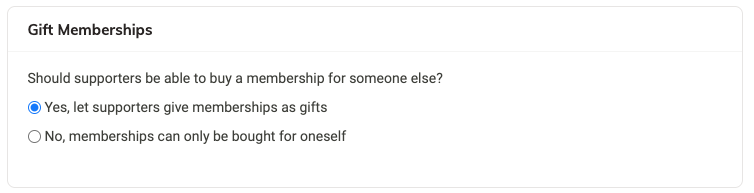
- Under Should supporters be able to buy a membership for someone else?, choose Yes, let supporters give memberships as gifts. When the setting is on, supporters will see gift options on your fundraising pages. Turning this setting off later doesn't affect gift memberships that already exist, and your organization can still record gifts internally (see How do I record a gift membership myself? below).
How do supporters buy a gift membership?
There are two ways supporters can buy a gift membership online, depending on how your membership levels are set up.
Option 1: On a fundraising page (donation-based memberships)
When a supporter chooses a donation option that includes a membership, after they enter their details, they'll see a step to Give in someone else's name.
-
The supporter selects Gift membership.
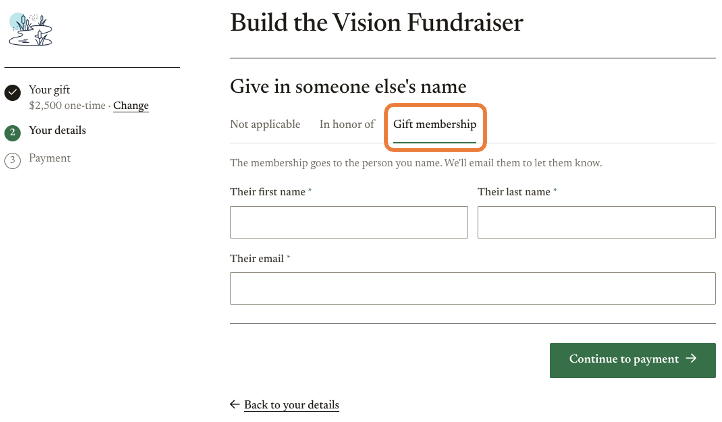
- They enter the recipient's first name, last name, and email address. All three are required.
- They click the button to Continue to payment and finish their donation as usual.
If the recipient's email matches someone already in your MonkeyPod, the membership goes on their existing record. If not, MonkeyPod creates a new relationship for them.
A note on page templates: The Gift membership choice is available on fundraising pages that use the Maui, Hawai'i, and Kaua'i templates. It isn't available on the Old School template or the legacy Donation Forms (Embeds).
A couple of things to know:
- Offline payment: a supporter who chooses Gift membership can't use Send Payment Offline, so gift memberships bought on a fundraising page are always paid online.
- Options without a membership: donors who give to an option that doesn't come with a membership won't see the Gift membership choice.
Option 2: Through a membership level's payment link (fee-for-service memberships)
If you sell a membership level through a Stripe payment link, you don't need a separate link for gifts. When gift memberships are turned on, MonkeyPod adds two optional questions to each membership level's existing payment link:
- Buying as a gift? Recipient's full name
- Buying as a gift? Recipient's email
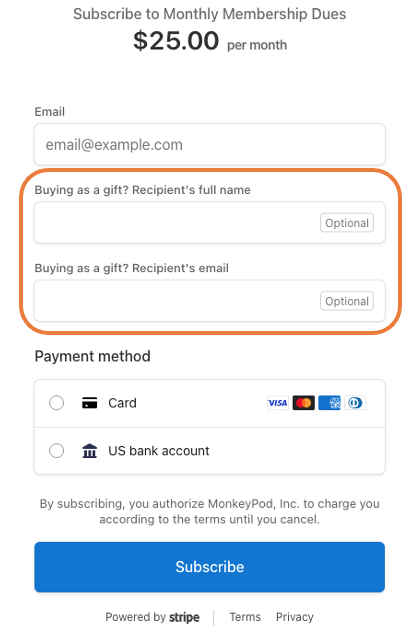
Buyers paying for themselves just leave these blank, and the membership is theirs as usual. If a buyer fills them in, the person they name becomes the member. An email address on its own is enough for MonkeyPod to match or create the recipient's record.
The link's URL doesn't change when you turn gift memberships on or off, so you can keep using the same link in your emails and on your website.
Tip! Stripe doesn't check email addresses for typos. If a buyer enters a recipient's name without a valid email address, the gift is still recorded and MonkeyPod sends you a notification so you can follow up and fix the recipient's record.
How do I record a gift membership myself?
Sometimes a gift comes in through your staff instead of online: someone stops by the front desk with a check for their neighbor's membership, or a board member mentions that the membership they paid for is really for their brother. In those cases, record the payment as you normally would, then use Re-assign membership to mark it as a gift.
- Record the sale or donation on the buyer's record as usual. The membership is created for the buyer.
- From the main menu, choose Apps & Integrations > Member HQ and stay on the Members tab.
- Find the buyer's membership and select the 3-dot icon at the end of the row.
- Select Re-assign membership.
- Begin typing their name or email in the form to choose the person who should hold the membership (the recipient). If they're not already in your MonkeyPod, use the Create New option that appears in that field to create the new relationship.
- Choose Make this a gift from [buyer]
- Select Re-Assign Membership.
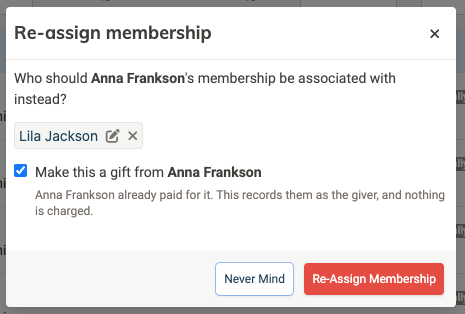
The membership moves to the recipient and shows "Gift from [buyer]." Payments already connected to the membership stay with it, so a later renewal, refund, or deletion of that payment updates the gifted membership, not any membership the buyer holds for themselves.
Just fixing a mistake? Leave the gift box unchecked to simple reassign the membership from one person to another.
How do I find gift memberships in Member HQ?
Gift memberships can be found in a few different ways:
- Choose Apps & Integrations > Member HQ from the main menu, and view the Members tab: a gift icon and the buyer's name appear under the member's name.

-
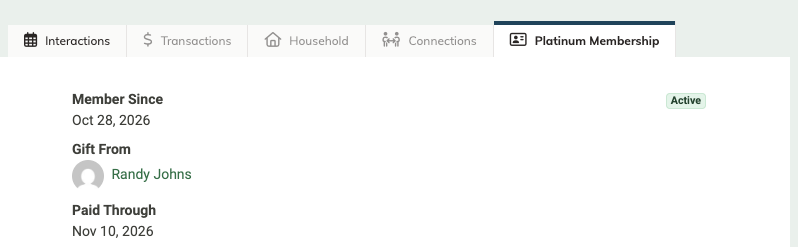
The recipient's relationship record: the Membership tab shows a Gift From row with the buyer's name.
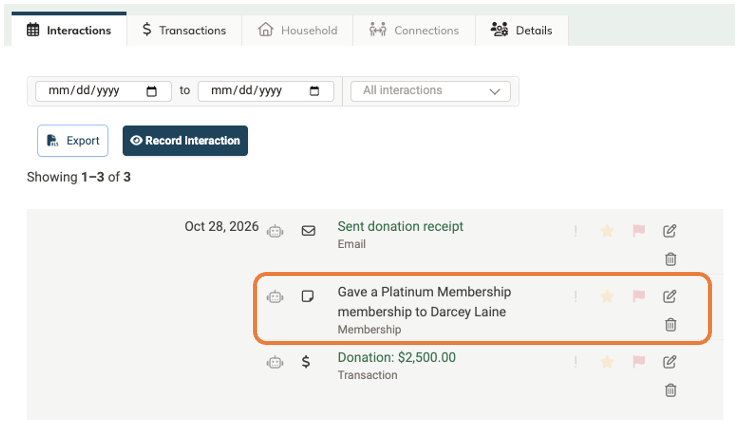
- The buyer's relationship record: an interaction shows "Gave a [level] membership to [recipient]."
When a new gift membership comes in, the 'new membership' notification to staff also mentions who the gift is from.
What do the recipient and the buyer see?
It helps to know what your supporters see, so you can answer their questions with confidence.
The recipient
- Gift email: an email letting them know they've received a [level] membership and who it's from, with a link to their membership card if your organization uses them.
-
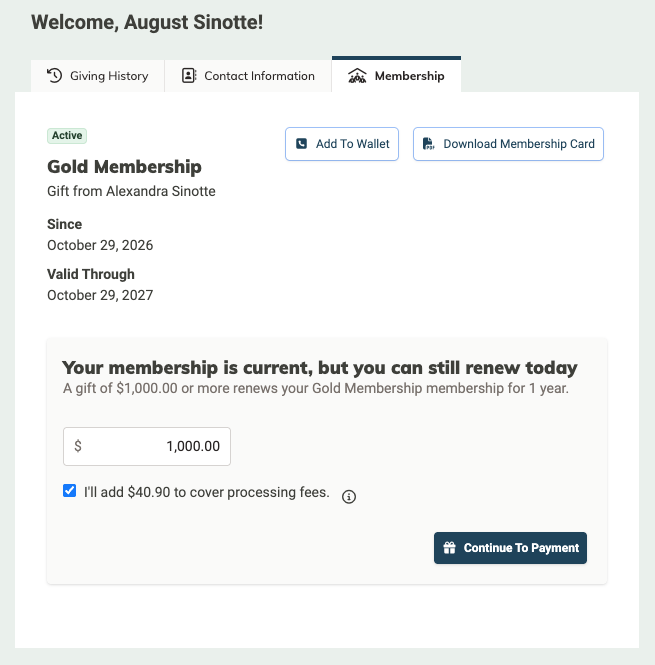
Community Portal: their membership shows "Gift from [buyer]" (plus "renews automatically" when the buyer's payment renews it). They can view the membership and download their card, but they don't see the options to update billing or cancel a gift that the buyer is paying for. If the buyer only paid for one year (so it won't automatically renew), they will see options to renew it themself:
- Renewal reminders: if the gift is a one-time membership, the recipient gets the usual renewal reminder when it's nearing its end (if renewal reminder emails are enabled in the Member HQ Settings tab).
The buyer
- Receipt: the buyer gets the receipt for their payment, just like any other gift or purchase.
- Billing reminders: for a gift that renews automatically, the 7-day "you'll be charged soon" reminder goes to the buyer, since it's their card being charged (if renewal reminder emails are enabled in the Member HQ Settings tab).
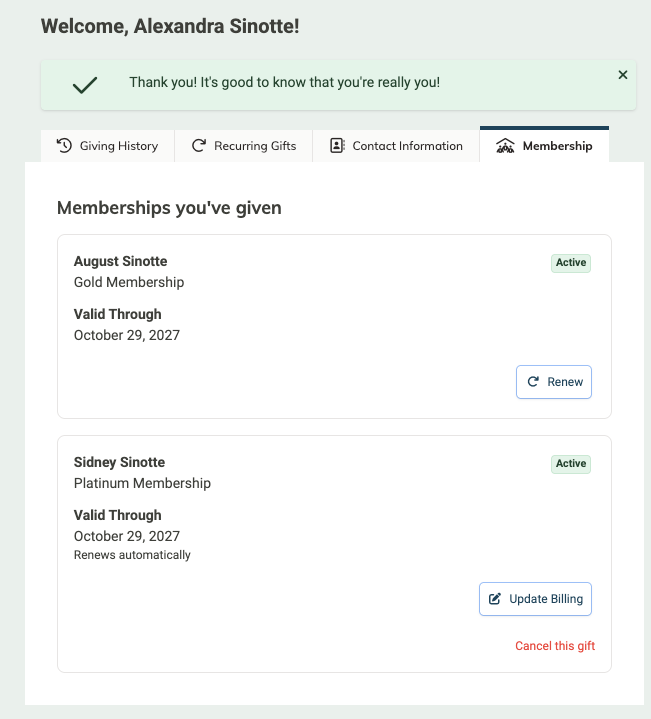
- Community Portal: a Memberships you've given section lists each gift with the recipient, level, dates, and status.
From the Memberships you've given section, the buyer can manage the gifts they're paying for:
- For a one-time gift: renew it. The buyer pays, the recipient keeps the membership, and the buyer stays the giver. (First membership shown below)
-
For a gift that renews automatically: update the card it's billed to, cancel it, or reactivate it. Updating the card only changes billing for that gift. (Second membership shown below.)
New to the portal? Check out How Supporters Can Use Their Community Portal to learn more about what supporters can do there.
How do renewals work for gift memberships?
It depends on how the gift was paid for.
Gifts that renew automatically (a recurring donation on a fundraising page, or a membership level's payment link): the buyer's card keeps paying. Each renewal extends the recipient's membership, and the membership always stays with the recipient. If the buyer cancels or a payment fails, the membership lapses just like any other.
One-time gifts: the membership runs through its paid-through date and then expires normally. Before it ends, either person can keep it going:
- The buyer renews it: it stays a gift, and the buyer stays the giver.
- The recipient renews it themselves: they take over paying, and the membership now shows "Originally a gift from [buyer]."
Frequently Asked Questions
What happens if someone gives a membership to a person who's already a member?
If the recipient already holds the same membership level, the gift extends their current membership instead of creating a second one. If they hold a different level, MonkeyPod creates the new membership and sends you a notification so you can decide what to do.
The buyer already has their own membership. Will a gift change it?
No. A gift purchase never changes the buyer's own membership.
Does the recipient get credit for the gift in their giving history?
No. The payment and giving credit stay with the buyer.
What happens if I refund the payment for a gift membership?
The refund rolls back the paid-through date of the gifted membership. Deleting or voiding the payment works the same way.
Can supporters buy a new gift membership from the Community Portal?
Not directly. Supporters start a gift on your fundraising page or a membership level's payment link. The portal is where buyers and recipients see and manage gifts that already exist.
Why did I get a "gift membership was bought for someone without a valid email address" notification?
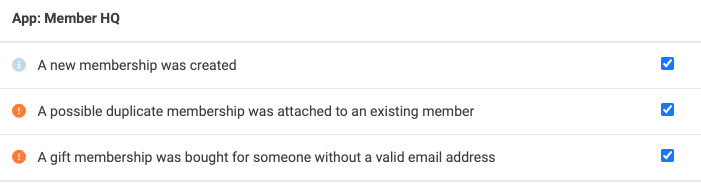
A buyer entered a recipient's name on a payment link but the email address wasn't valid. The gift is still recorded, so check the recipient's record and update their email address. You can turn this notification off in your user settings' notification preferences. Choose the profile menu in the top right and select Notification Preferences. Look for the App: Member HQ section, and you'll find the setting there.
Why don't I see the Gift membership choice on our fundraising page?
Check that Should supporters be able to buy a membership for someone else? is set to Yes in Member HQ > Settings, that the donation option the supporter chose comes with a membership, and that your page uses the Maui, Hawai'i, or Kaua'i template.