
How to Use the Audit Log to Review Transaction Changes
The audit log is your organization’s consolidated history of bookkeeping entries. It provides a traceable record of who made changes to transactions, when, and what those changes were.
The audit log gives you the clarity and accountability to keep your financial data in order. It can help with:
- Protecting against fraud and errors: A detailed log makes it harder for fraud to go unnoticed and easier to identify the source of the problem. It also helps correct accidental errors, such as a user mistakenly deleting a transaction that causes a discrepancy.
- Ensuring compliance and transparency: Audit logs provide proof of financial activities for donors, regulators (like the IRS), and help the organization meet compliance standards.
- Improving data integrity: The log allows staff to track changes to identify if they were intentional, accidental, or caused by a software bug.
- Identifying training needs: By observing patterns in the audit log, such as a high number of voided or modified transactions from a particular user, you can identify individuals who may need additional training.
Important: Transaction deletions were not recorded prior to the creation of this audit log feature in April 2025, so they will not appear in the log.
Where can I find the audit log?
The audit log is located in the Finance menu, under the "Other" heading.
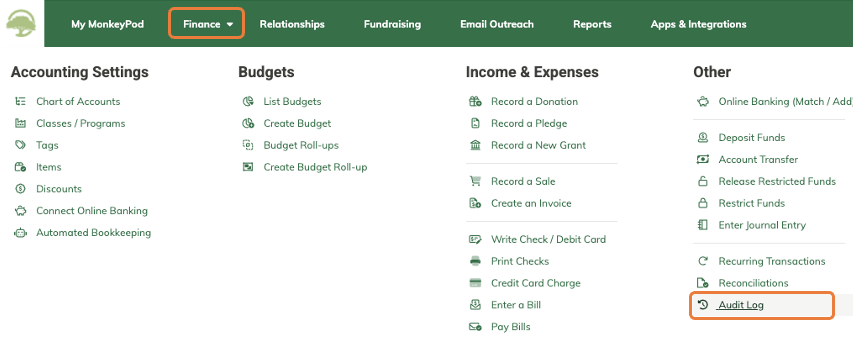
It is accessible to any user with permission to view financial transactions. (See Overview of User Roles and Permissions to learn about setting permissions.)
How do I use the audit log?
By default, the audit log opens to display all actions. You can quickly narrow the list of entries to find exactly what you need by using the filters:
- Date range: Select the start and end date for the time period you're interested in.
- Filter by user: See actions performed by a particular team member by choosing their name from the filter in the User column heading.
- Filter by action: Filter to show entries where a transaction was either created, edited, or deleted.
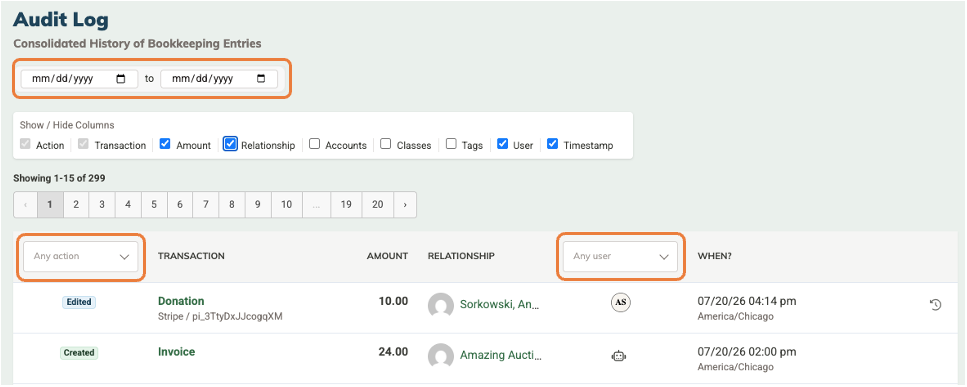
The audit log displays the Action and Transaction information by default, but you can choose to show or hide additional fields to focus on the information most useful to you. Optional columns include:
- Amount
- Relationship
- Accounts
- Classes
- Tags
- User (also serves as a filter)
- Timestamp
Looking into changes to a specific transaction
The audit log shows you that a transaction was changed in some form, indicated by the label in the first column (e.g. Created, Edited, Deleted). To see what changed in the specific instance, select the View Changes icon at the end of the row:

To see more detail about the transaction itself, click the transaction name and you'll be taken to the transaction page.

There you can view the Transaction History tab for a timeline of all changes to that transaction. Click the Snapshot button to view the details of any particular change.
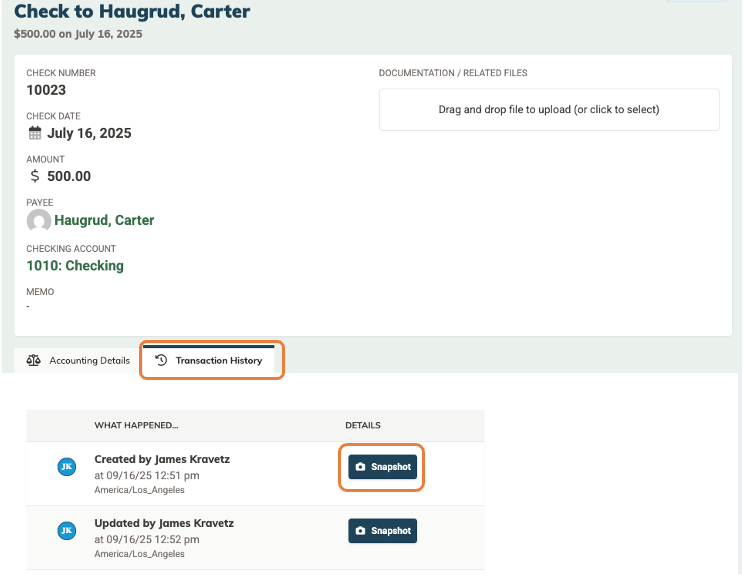
The snapshot shows the accounting details as they were when that particular "action" occurred. Compare snapshots to determine the specific modifications that were made.