
How to Turn Your Older Donation Forms to New Embeddable Fundraising Pages
For organizations using MonkeyPod before November 2026: Donation Forms (Embeds) are no longer being developed. We recommend embedding a Fundraising Page on your website instead.
Prior to November 2026, if you wanted donors to give directly on your website, rather than from a MonkeyPod Fundraising Page, you would embed a MonkeyPod Donation Form (Fundraising > Donation Forms (Embeds) ) into your website. Now, MonkeyPod is taking a new, more flexible approach to donation forms by offering embeddable Fundraising Pages.
While you can continue using the old Donation Forms, MonkeyPod's updated Fundraising Pages come with fresh new designs, more customization options, and additional settings. They also scale dynamically, so they can work into your website design as a compact giving form, a sidebar, or as a full page.
Give them a try! We think you'll like the new approach.
What's new in Fundraising Pages that I can't get in the old Donation Forms (Embeds)?
The new Fundraising Pages give you a lot more to work with than the original Donation Forms. Here are the highlights:
- Modern templates: choose from three new designs (Maui, Hawaiʻi and Kauaʻi) that use your organization's color and logo. Every template offers the same features, so you can pick the look that fits your website best.
- Offer multiple donation options: an embedded Fundraising Page can offer multiple donation options, in any order you choose. The old Donation Forms only offered one.
- Split a gift between donation options: You can also let donors split a single gift across more than one option so, for example, they might allocate $50 of their $100 donation to your Scholarship Fund and another $50 to your Annual Campaign.
- Advanced design: if you have a web designer, they can fine-tune the embedded page's styling to match your website.
- Tools to enable Apple Pay and Google Pay: where available, set up "allowed domains" to activate digital wallet payment options for donors giving from that site.
- Better reporting: the Online Conversion report can report on visits to the new fundraising pages, even when they're embedded in your website, so you can see how many visitors actually followed through the entire form to donate.
Which Fundraising Pages can be embedded?
Any Fundraising Page that uses one of the new templates (Maui, Hawaiʻi or Kauaʻi) can be embedded. You'll choose a template on the page's Visual Design tab, under Template:
- Maui: "Campaign page." Your story sits beside a giving form that stays in view as donors scroll.
- Hawaiʻi: "Brand canvas." Your color floods the page and everything sits on one white sheet.
- Kauaʻi: "Editorial appeal." An elegant letter alongside your campaign figures and giving form.
- Old School: the fundraising page layout you know and love, now being retired. Old School pages can't be embedded.
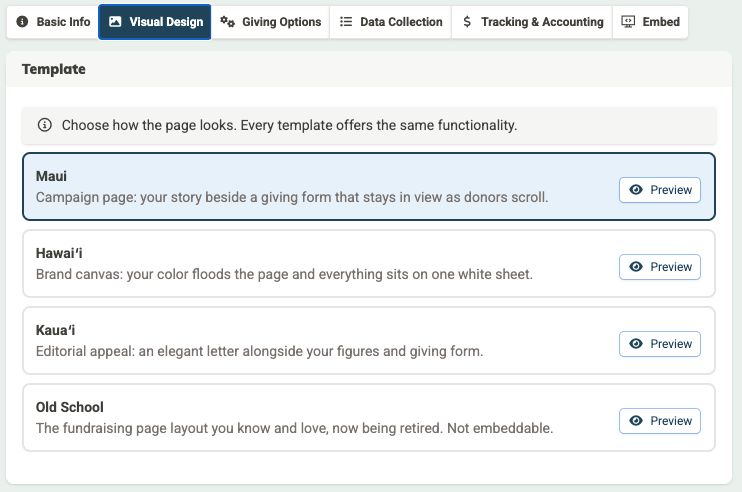
Select Preview next to any template to see how your page would look before you switch.
Any pages that were created before the new templates arrived stay on Old School until you choose a new template—so nothing will change on your existing pages until you're ready.
What if I already have Donation Forms (Embeds) on my website?
No need to rush! Your Donation Forms keep working, and you can still edit them and create new ones. You'll find them in the menu under Fundraising > Donation Forms (Embeds). However, Fundraising Pages provide many additional features, have greater design flexibility, and can be embedded just as easily. We recommend making the switch when it's convenient, for example when you're setting up your next campaign.
Don't see Donation Forms (Embeds) at all? If your organization has never created a Donation Form, that section doesn't appear in your MonkeyPod. Embedding a Fundraising Page is the way to go.
How do I switch from a Donation Form to an embedded Fundraising Page?
To make the switch from an old Donation Form to a new fundraising page, you'll first set up the new Fundraising Page based on your settings from the old form. Then you'll copy the embed code and paste that into your website to replace the old embed code.
Get your Fundraising Page ready
-
Open the settings for your existing Donation Form by choosing Fundraising > Donation Forms (Embed) from the main menu. Then select the Edit Settings icon to view the settings.
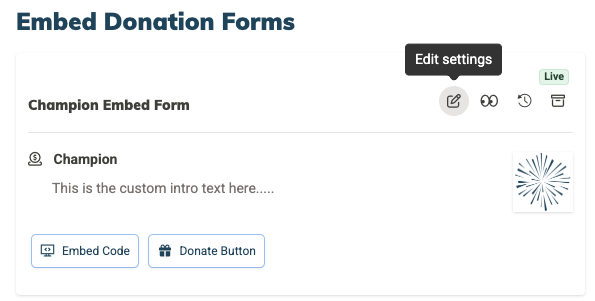
- In a separate browser window, choose Fundraising > Fundraising Pages from the main menu, and then select Add a Fundraising Page. Enter the name of the page, and select the checkmark to save it.
- Open the two browser windows side by side (one showing the old Donation Form and one showing the new Fundraising Page). Now copy over the settings from the old form as you build the new page.
- You'll find settings for donation options in the Giving Options tab.
- Donor information and Additional Questions can be found on the Data Collection tab.
- Header image and receipt logo are on the Visual Design tab.
- The Donation Form's "Intro Text" would go in the Description field on the Basic Info tab.
- Font, layout and other visual design elements will change to match the template you choose on the Visual Design tab, and you may further customize the look using the Advanced design options found on the Fundraising Page's Embed tab.
- Check out How to Make a Fundraising Page for details on any other settings for building your page.
-
When ready, select the Embed tab for the page.
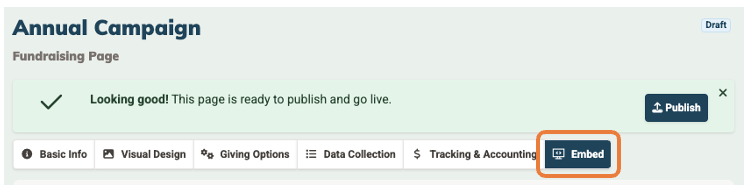
There, you'll find a preview where you can check out your work! Return to any of the other tabs to make edits as needed.
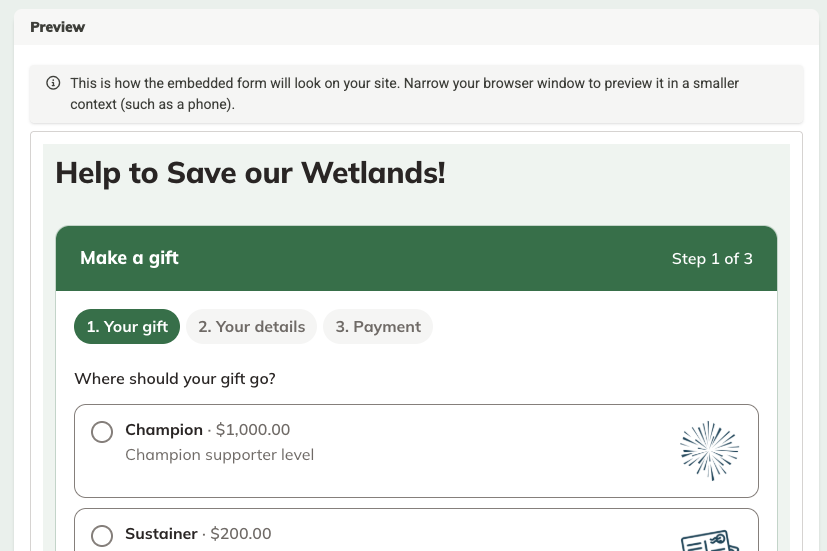
When everything looks good, publish your new Fundraising Page and you're ready to embed it on your website!
Copy the embed code and paste it into your website
- Open the page's Embed tab.
-
Under Embed this page on your website, select Copy Embed Code.
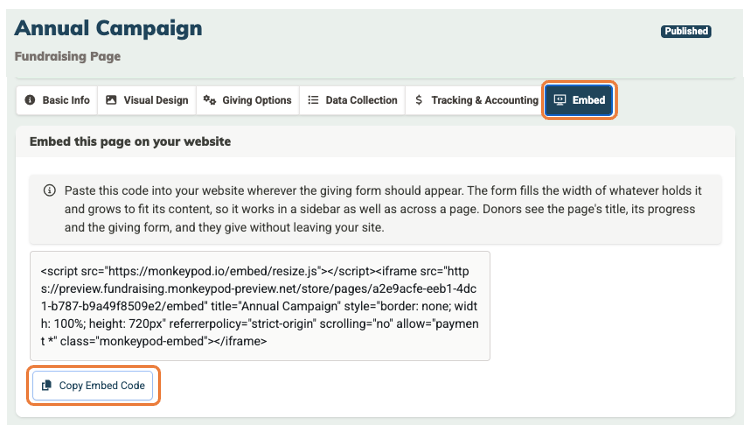
- In your website editor, edit the page where your existing Donation Form appears. Remove the old embed code and paste the new code in the same spot.
- Preview and publish your website changes.
The embedded page fills the width of the space you give it on your webpage, so the same code works in a narrow sidebar or across a full page.
Example: the Riverside Arts Center pastes the embed code for its "Year-End Appeal" page into the sidebar of its homepage and into a full-width section of its "Support Us" page. Both spots show the same campaign progress, and every gift is recorded on the Year-End Appeal page, just as if the donor had given on the page itself.
Frequently Asked Questions
Will my old Donation Form embed code stop working?
No. Existing Donation Forms keep working for donors, so there's no deadline to switch. We just recommend Fundraising Pages for anything new.
Can I still create new Donation Forms?
Yes, if your organization already has at least one. You can keep creating and editing them from Fundraising > Donation Forms (Embeds). Organizations that have never used Donation Forms won't see them listed in the Fundraising menu.
Why does my page's Embed tab say it can't be embedded?
The page uses the Old School template. Choose Maui, Hawaiʻi or Kauaʻi on the Visual Design tab, select Save, and the embed code will appear on the Embed tab.
Will my banner image and full description show on my website?
Not by default. Your website already tells your story, so the embedded page keeps things compact: it shows the page title, progress and giving form. If you want to bring other parts back, a web designer can do it with Advanced design options in the Fundraising Page's Embed tab.
Can donors make a monthly gift or a pledge from the embedded page?
Yes. One-time and recurring gifts, as well as Send Payment Offline pledges are all supported in the embedded page.
Will my donation reports look different?
Gifts made through an embedded page are recorded exactly like gifts made on the Fundraising Page itself. The only difference is in the Online Conversion report, which shows embedded visits separately. (Visits to the older Donation Forms are not recorded in the Online Conversion report.)
I'm a fiscally sponsored project. Does my sponsor's disclosure still appear on embedded pages?
Yes. The fiscal sponsor disclosure appears on the embedded page too, and it can't be hidden through Advanced design. If you use Advanced design, make sure the disclosure stays visible and easy to read.