
How to Print Annual Giving Statements for Your Donors
Every January, the same request starts trickling in: "Can you send me something for my taxes showing what I gave last year?" We've got you covered! MonkeyPod can help out in a couple of ways. Donors can be directed to their Community Portal to view and download copies of their donations receipts. (See How Supporters Can Use Their Community Portal for details.) Or you can use your MonkeyPod's Year-End Giving Summary report to print a batch of letters for all donors who need them. This article covers how to do that.
With annual giving statements, your MonkeyPod creates a polished, printable statement for every donor (or every household) that lists each gift they made during the calendar year and its deductible amount. Print them all at once from the Year-End Giving Summary report, mail them out early, and your donors will have what they need before they think to ask. It's also one more chance to say thank you.
And if a statement gets lost in a pile of tax paperwork (it happens!), donors can download the same statement anytime from their Community Portal.
This article covers:
- What's on an annual giving statement?
- How do I print annual giving statements?
- Should I print by individual or by household?
- Which donors and gifts are included?
- How do I customize the opening and closing paragraphs?
- Are there any constraints when printing a really large donor list?
- How can donors get their own statement?
- Frequently Asked Questions
What's on an annual giving statement?
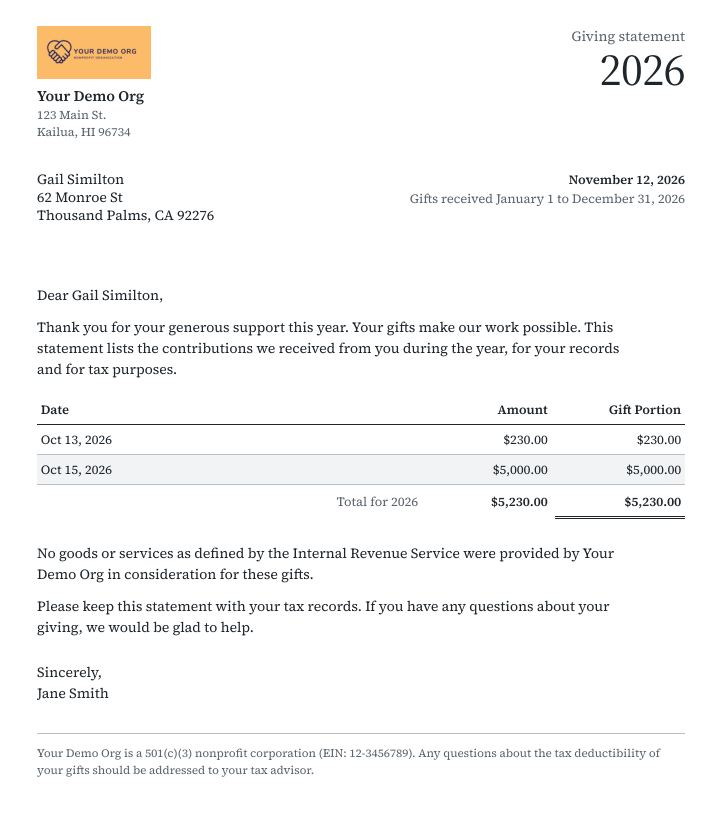
Each statement is a letter from your organization to the donor. It includes:
- Your organization's details: name, address, logo and EIN.
- The statement date and the calendar year that it covers.
- The donor's name and mailing address, positioned to show through a standard #10 window envelope.
- Your opening paragraph, which is a thank-you note you can customize.
- A table of gifts with the date, amount and Gift Portion (the deductible amount) of each one. On household statements, a Given by column shows which household member made each gift.
- Totals for the amount given and the deductible amount.
- A goods-and-services statement. If any gift included something of value in return (like a gala dinner), the statement notes the value received. If none did, it says no goods or services were provided.
- Your closing paragraph and signature, using your organization's closing and default receipt sender, just like your donation receipts.
Tip! Statements use the same organization details, closing and signer as your donation receipts. To update them, see How to Set Up and Customize Donation Receipts.
How do I print annual giving statements?
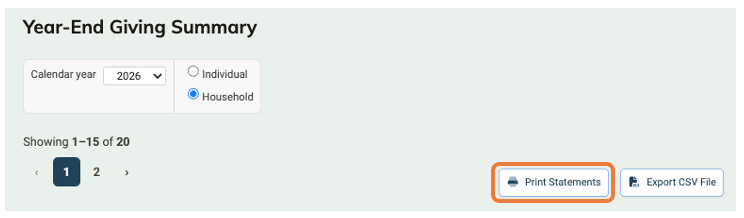
- Go to Reports, and under Fundraising & Sales, select Year-End Giving Summary.
- Choose the Calendar year you want statements for.
- Select Individual or Household (see the next section if you're not sure which).
-
Select Print Statements.
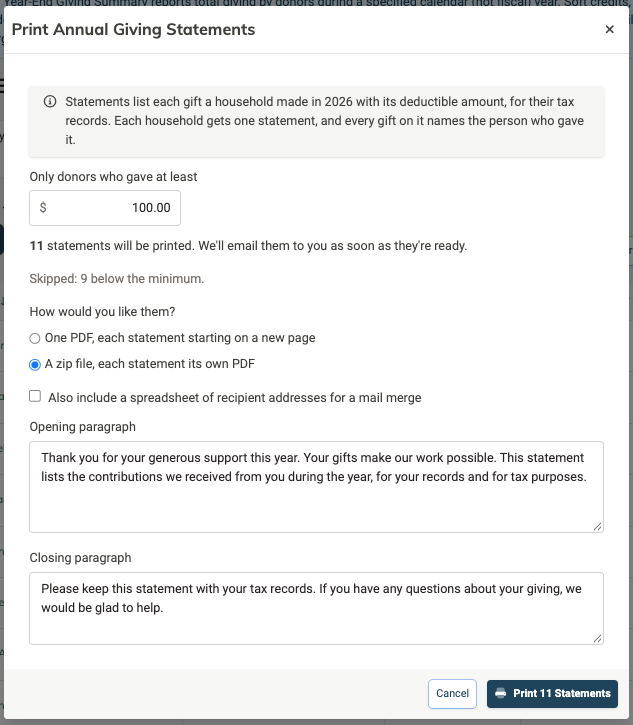
- In the Print Annual Giving Statements window, review your options:
- Only donors who gave at least: enter an amount to limit statements to donors at or above it, or leave it blank to include everyone. MonkeyPod shows how many statements will print and how many were skipped.
- How would you like them?: choose One PDF, each statement starting on a new page or A zip file, each statement its own PDF.
- Also include a spreadsheet of recipient addresses for a mail merge: check this if you'd like to print address labels or envelopes to go with your statements. (Note that the address on the letter is already positioned to show in the window of #10 Window Envelopes.)
- Opening paragraph and Closing paragraph: edit the text if you like (more on that below).
- Select Print [number] Statements.
MonkeyPod creates your statements in the background and emails them to you as soon as they're ready. Once they arrive, print them, fold them into window envelopes and send them on their way.
A note on mailing: MonkeyPod creates the PDFs for you; your organization prints and mails them. At the time the PDF is generated each printed statement is also logged as an interaction on the donor's timeline, so your team can see who received one.
Should I print by individual or by household?
It depends on how your donors file their taxes and how you'd like to address them.
- Individual: each donor gets their own statement listing only their own gifts.
- Household: one statement goes to the household, addressed with the household name and address. It includes gifts from everyone in the household, and a Given by column in the table of gifts in the letter names the person who made each gift, since that's who the deduction belongs to.
A household member's gifts roll up to the household only when Share parent activity is turned on for them. Members with it turned off get their own statement, even in Household mode. To learn more, see How to Use Householding.
Which donors and gifts are included?
The statements will reflect the same information that shows up in the Gift Portion column on the Year-End Giving Summary report.
Included:
- Donations
- Pledge payments
- Grant payments
Not included:
- Soft credits (they aren't the donor's own gift)
- Sales, like event tickets or merchandise
- Pledges and grant awards that haven't been paid yet
Refunds are taken into account automatically. A fully refunded gift is left off the statement, and a partial refund reduces that gift's deductible amount.
A few donors won't get a statement at all:
- Donors with no deductible giving in the selected year
- Donors marked Do Not Receipt (as you might do for donor advised funds)
- Donors below the minimum amount you set (see below)
How do I customize the opening and closing paragraphs?
Your statements come with friendly default text, but you can make it your own. In the Print Annual Giving Statements window, edit the Opening paragraph and Closing paragraph boxes before printing.
Your MonkeyPod remembers your changes, so next year's statements start with the text you used this year.
Are there any constraints when printing a really large donor list?
You can print up to 2,500 statements in one request.
When you print more than 250 statements, MonkeyPod splits them into groups of up to 250. When every group is finished, you'll get one email with a download link for each part (for example, "Part 1 of 4: recipients 1–250"). The parts are in the same order as your statements, so it's easy to keep track as you print.
If you need more than 2,500 statements, use the minimum amount setting to print in a few batches.
Tip! The single combined PDF is much faster to create than a zip of separate PDFs. If you're printing everything yourself, the combined PDF is usually the way to go.
How can donors get their own statement?
Donors can view their yearly giving totals and download their own annual giving statement anytime from their Community Portal, including a year-to-date statement for the current year. It's the same statement you'd print for them here. Learn more in How Supporters Can Use Their Community Portal.
That makes a great pairing with a year-end email: send a thank-you email with a link to each donor's portal so they can grab their statement themselves. See How to Email Year-End Giving Summaries.
Frequently Asked Questions
Can MonkeyPod email annual statements to donors directly?
Not currently. Donors always receive individual receipts immediately after any online giving, and you can manually send them receipts at any time for offline gifts that you record manually. (See How Donation Receipts Work in MonkeyPod.) For year-end summaries, you can print and mail statements, and donors can download their own from the Community Portal. For an email approach, send a year-end email with a portal link, as described in How to Email Year-End Giving Summaries.
Why didn't a statement print for a donor?
The most common reasons: they had no deductible giving in that year, they're marked Do Not Receipt, their total was below the minimum you set, or (in Household mode) their giving was included on their household's statement instead.
A donor is marked Do Not Receipt but wants a statement. What can I do?
They can download their own statement from their Community Portal. Do Not Receipt only skips them when you print in bulk.
Can I print statements for our fiscal year instead of the calendar year?
No. Statements cover a calendar year, because that's the period donors use for their taxes.
Will printing statements change anything in my books?
No. Printing only creates PDFs and logs a "Printed annual giving statement" interaction for each recipient. Nothing in your accounting changes.
Why doesn't a gift for a gala ticket show its full amount as deductible?
When a donor receives something of value in return, only the amount above that value is deductible. The statement shows the full amount and the Gift Portion separately, and includes a note about the goods or services received.