
How to Bulk Update Roles on Existing Relationships
The fastest way to assign or change roles across a group of existing relationships is through the bulk action options in the Relationship Search.
Step-by-Step
- Go to Relationships > New Search and build a search that returns the relationships you want to update.
- Once your results appear, click the Assign/Remove A Role button in the action bar above the results list.
- Choose the role you want to assign or remove, and confirm.
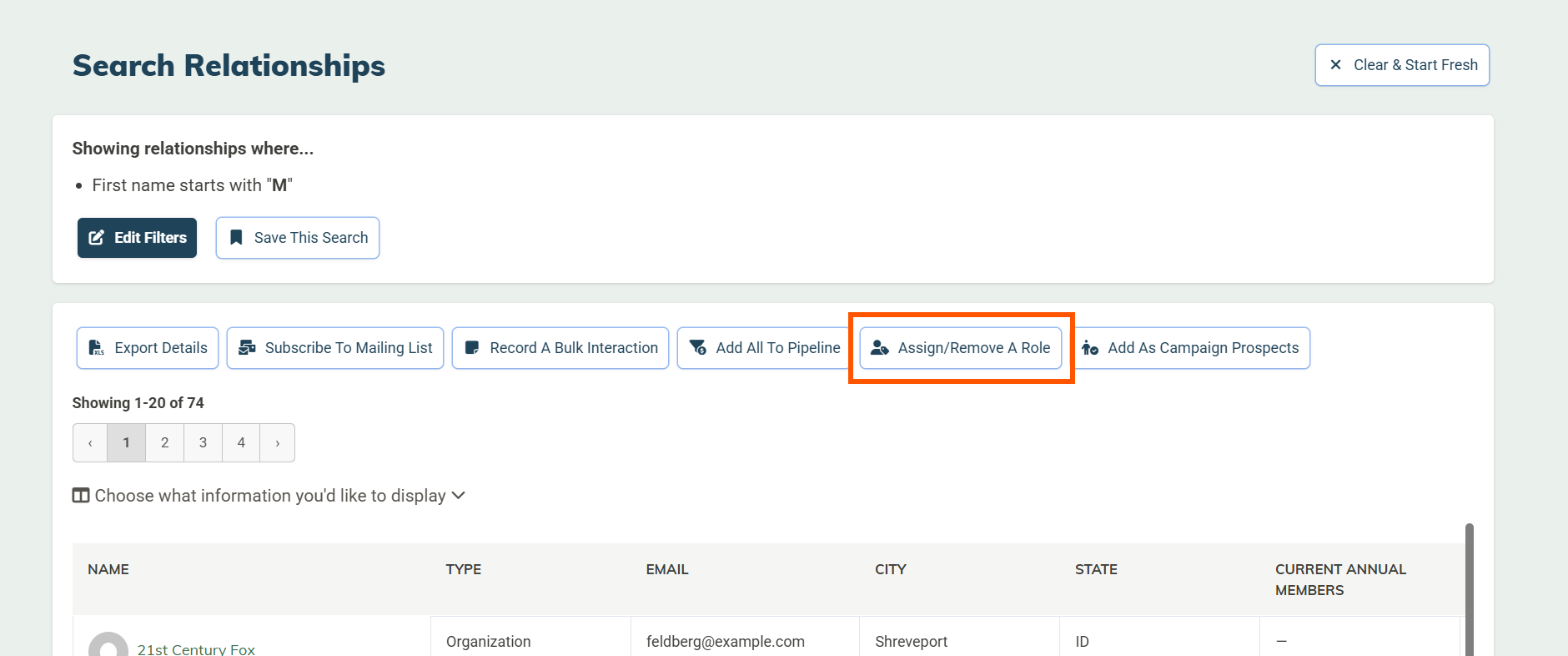
Important! The change applies to all contacts currently shown in your search results, so take a moment to review the list before confirming.
Saving Your Search for Future Use
If you'll need to run this same update again — for example, at the end of each membership year — click Save This Search. Saved searches can be reused anytime from the Relationship Search page. You can learn more about them in How to Use the Relationship Search.
What You Can't Do in Bulk
Users are not able to bulk update custom attributes or transactions in MonkeyPod. If you need assistance with that, please contact us at support@monkeypod.io.
Frequently Asked Questions
What if I only want to update some of the contacts in my search results?
Narrow your search filters first so the results only include the contacts you want to change. The bulk action applies to everyone in the results set.
Can I remove a role from a group of contacts the same way?
Yes, the Assign/Remove A Role button handles both assigning and removing roles.
What happens if a contact already has the role I'm assigning?
It's no problem, MonkeyPod will just skip them. Assigning an existing role to a contact doesn't create a duplicate. Likewise, if someone in your search doesn't have the role you try to remove, nothing will be changed.