
How to Run Bulk Actions on Relationships
After you've run a search on your relationships, or filtered a report to view a specific subset of relationships, you can choose from a number of bulk actions to take across every relationship in that list, instead of opening each record one at a time.
For example, let's say you want to search for everyone who recently purchased annual memberships and add them to a mailing list. Or perhaps you want to find everyone who has attended your workshops and assign them a role of "Program Participant." Or maybe you're looking at your LYBUNT report and want to add everyone who gave last year but not this year to a new pipeline. These are all cases where bulk actions can help!
What sorts of things can I change in bulk?
These actions are available in relationship search results, pipelines, the interaction feed, and most relationship reports:
- Assign a Role: Give every relationship in the list a role, like Donor or Volunteer.
- Remove a Role: Take a role away from everyone in the list.
- Subscribe to a Mailing List: Add everyone in the list to one of your Email Outreach lists.
- Record a Bulk Interaction: Log the same interaction (a call, an event, a mailing) for every relationship.
- Add to a Pipeline: Add everyone in the list to a cultivation pipeline.
- Add as Campaign Prospects: Add everyone in the list as prospects on a Campaign Tracker campaign (only available if your organization uses Campaign Tracker).
- Set a Custom Attribute: Choose a Custom Attribute and its value to apply to all relationships in the list.
- Create Donor Profiles: Use AI to research and generate a cultivation profile for everyone in the list who doesn't already have one. This one works differently from the others (see the note below).
A note on Create Donor Profiles: Unlike the other bulk actions on this list, creating donor profiles can't be undone. It's also the only action here with a cost: MonkeyPod shows you an estimate before you confirm, based on how many profiles are still included in your plan this month versus how many would go over. You can choose to create profiles only for relationships that don't have a profile yet, or refresh all existing profiles. Once you confirm, MonkeyPod starts researching and generating profiles right away, and a generated profile can't be un-generated or refunded. Check out Learn About Donor Research Profiles for details.
Where can I run bulk actions?
The bulk action toolbar looks like this row of buttons:

It sits right above the results table for:
- Relationship Search results: Go to Relationships > New Search, build your search, and select View Matching Relationships.
- Reports: Most relationship-focused reports in the Reports menu, including Top Donors, Top Customers, Top Vendors, Contribution Details, Sales Details, and Donor Retention (LYBUNT, SYBUNT, and First Time Donors).
- Pipelines: The bulk actions are applied to the relationships currently showing in the pipeline, based on the Active, Completed, and Exited selectors at the top of the page.
- Interactions: Go to Relationships > Interactions to search for any type of interaction that relationships have had with your organization. Both the Search Interactions tab and the Full Feed allow for bulk actions.
How do I run a bulk action?
To run a bulk action from any of the areas mentioned above:
- Open the list you want to work with: a relationship search, a report, a pipeline, or the interaction feed.
- Select the bulk action from the toolbar above the results.
- Fill in the details MonkeyPod asks for. For Assign/Remove a Role, for example, you'll choose whether you're assigning or removing a role, then which one; for Record a Bulk Interaction, you'll fill in the interaction details just like you would for a single relationship.
- Check the count MonkeyPod shows (for example, "Assign Role To 35 Matching") and confirm.
Tip! Whichever bulk action you select acts on the entire list of matching relationships, including those on other pages of the results, so take a moment to double-check your filters before you confirm anything.
How can I view my bulk action history?
Every bulk action you run is recorded under Relationships > Bulk Actions > Bulk Action History. Each row shows the action, who ran it, when, how many relationships it matched, how many it actually changed, and its result (Completed, Partly Undone, or Undone).
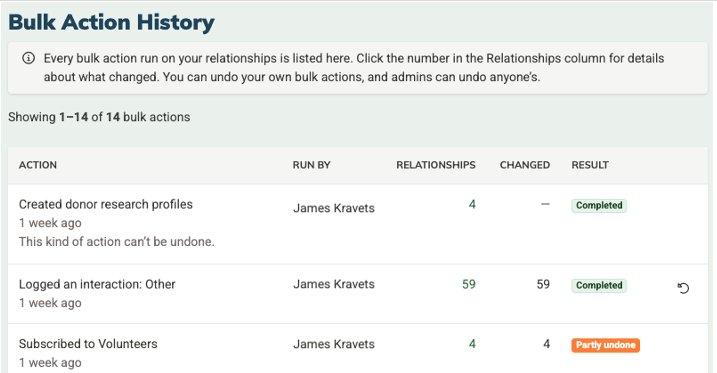
To see exactly which relationships an action reached and what happened to each one, select the number in the Relationships column. This opens a breakdown you can filter by outcome:
- Changed: The bulk action updated this relationship.
- No Change Needed: This relationship already matched what the action was trying to do (for example, they already had the role being assigned), so nothing changed for them.
- Failed: Something kept the action from applying to this relationship—MonkeyPod shows a reason, like the record no longer existing or a conflict with other activity.
How can I undo a bulk action?
Most bulk actions can be undone. Create Donor Profiles is the exception — since it can't be reversed, you won't see an undo option for it.
To undo an action, go to Relationships > Bulk Actions > Bulk Action History and select the undo icon next to the run you want to reverse.
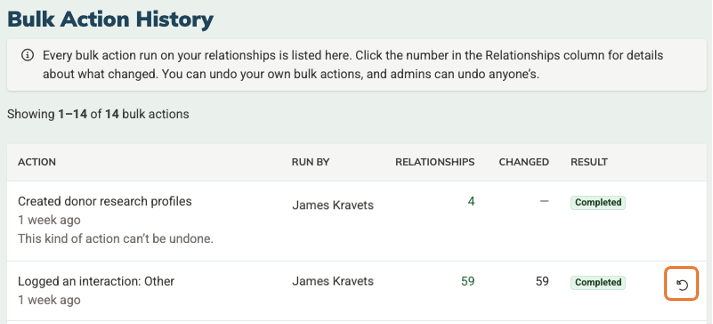
Here are a few details worth noting about what "undo" actually does:
- It only undoes what actually changed. If a relationship already had the role, was already subscribed, or already matched what the action was doing, undo leaves them just as they were before the bulk action, since nothing changed for them in the first place.
- It skips anything that's changed since. If you (or someone else) edited a relationship after the bulk action ran (by resubscribing someone by hand, for example), undo leaves that relationship alone rather than overwriting the newer change. When that happens, the Result column shows Partly Undone, and the results breakdown (see above) shows which relationships were left alone and why.
- Who can undo: you can undo a bulk action you ran yourself. Admin users can undo any bulk action, run by anyone.
Once a bulk action is fully undone, the undo icon disappears from its row since there's nothing left to reverse. The same is true if a run never changed anything in the first place (it shows as Completed with zero changes).
Frequently Asked Questions
I ran a bulk action last month and don't see it in Bulk Action History. Why not?
Bulk Action History only tracks actions run after this feature was released (September 2026). There's no record of anything from before that, so it won't appear in the list or be available to undo.
Can anyone see Bulk Action History, or just Admins?
Anyone who can view relationships can see the history and open the results breakdown for a given run. Undoing a run is more limited: only the person who ran it, or an Admin, can do that.
I ran a bulk action and nothing looks different. Did it work?
Check the Bulk Action History. If everyone in your results already matched what the action was doing (for example, everyone already had the role you were assigning), the run completes successfully but shows zero changes. That's expected, since there was nothing to change! The results breakdown tells you who was affected and who wasn't.