
How to Use MonkeyPod's AI Connector
Wish you could just ask for a chart, slide deck, report, or summary of anything in your MonkeyPod? Or ask simple questions about your supporters or finances, rather than going through a report interface? Well, now you can! With MonkeyPod's AI Connector, you can connect an AI assistant, like Claude or ChatGPT, to your MonkeyPod and ask it questions about your organization's data in plain, everyday language. It can even help keep your records up to date: adding a new relationship, recording a donation you've already received, or running bulk actions like adding people to a mailing list, campaign, or pipeline.
The AI Connector uses something called MCP (Model Context Protocol), which is the standard way AI assistants connect to outside tools. You don't need to know anything technical about MCP to use it.
Who can use the AI Connector?
To connect an assistant, like Claude or ChatGPT, you'll need:
- A MonkeyPod Enterprise subscription: your organization must be on the Enterprise plan.
- An active user account in MonkeyPod.
- An AI assistant that supports custom connectors such as Claude, Claude Code, or ChatGPT.
What should I know before I connect?
When you use any of the AI features available within MonkeyPod, like receipt analysis or donor research profiles, your information remains private and protected in line with MonkeyPod's AI policies. When you connect an AI assistant to share information outside of your MonkeyPod, that's a different use case. Since MonkeyPod is not in control of what your assistant does with the information, this usage falls outside of MonkeyPod's AI policies.
When you ask your assistant a question, it looks up the answer in your MonkeyPod and brings that information into your conversation. During that exchange:
- Your data is sent to your assistant: your assistant reads data from your organization's MonkeyPod in order to answer your questions.
- MonkeyPod doesn't control what happens to the data given to your assistant: once the data reaches your assistant, how it's stored and used is up to that assistant's own policies, not MonkeyPod's. Only connect assistants you trust, and review your assistant's privacy settings.
- You choose which organizations to share: if you belong to more than one MonkeyPod organization, you decide which ones the assistant can use.
- Changes always need your approval: your assistant can create a relationship, record a donation, or run bulk actions (all described below), but only if your permissions allow, and only after it shows you a preview and you confirm.
- You can revoke a connection at any time: simply delete the connection from your User Settings.
- Each user has their own connection: each user in your organization's MonkeyPod needs to set up their own connection, which is subject to the same permissions as that user's MonkeyPod account. When interacting with MonkeyPod, your assistant acts as you. It can only see what your own MonkeyPod account can see, and it can only make the changes your MonkeyPod user permissions allow.
Tip! Before connecting, check with your organization's leadership about whether your team is comfortable sharing donor and financial information with an outside AI assistant.
How do I connect my AI assistant?
Everything you need is in your MonkeyPod User Settings. From the main menu, choose My MonkeyPod > My Stuff > User Settings, then select the AI Assistants tab.

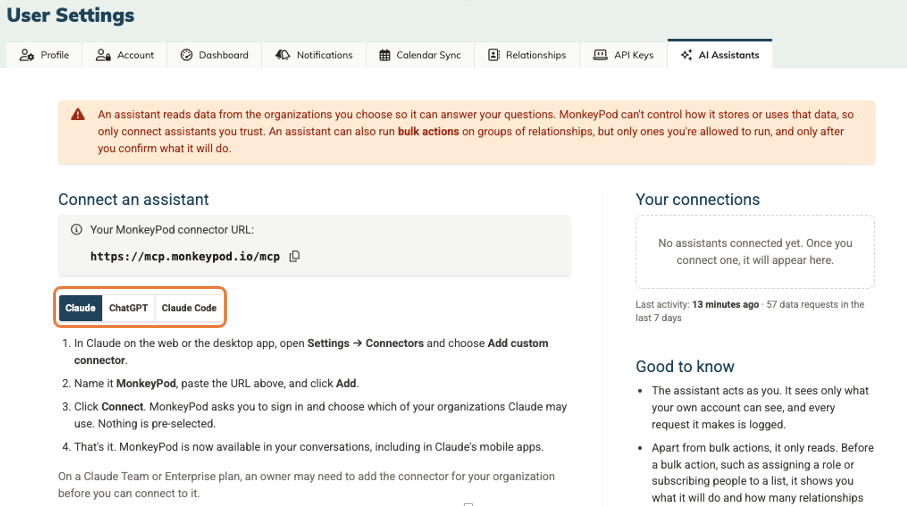
Step 1: Copy the connector URL. At the top of the AI Assistants tab, you'll find the MonkeyPod connector URL: https://mcp.monkeypod.io/mcp
Click the copy icon next to it to copy it.

Step 2: Add MonkeyPod as a custom connector in your assistant.
Select the AI assistant that you're using (Claude, ChatGPT, or Claude Code) and the specific instructions will appear onscreen.
Step 3: Sign in and choose your organization(s). The first time your assistant connects, MonkeyPod shows an approval screen. Sign in if you're asked to, then check each organization you want the assistant to be able to use. Most people will just have one organization to select, but if you're lucky enough to use MonkeyPod to help run multiple organizations, you may choose which to include in the connection!
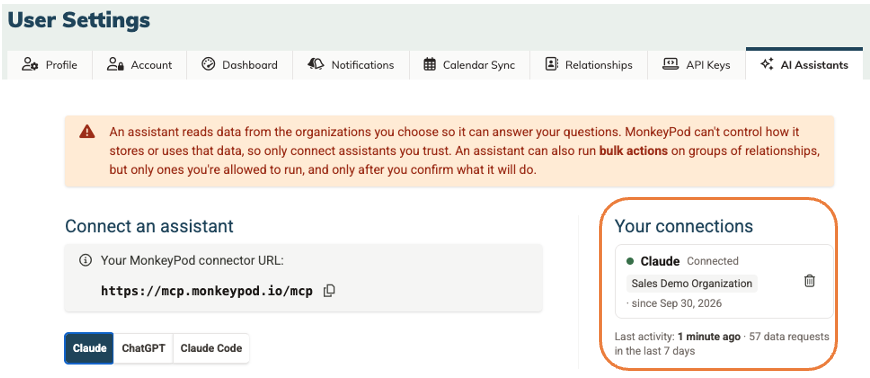
Step 4: Start asking! Once you approve, your connection appears in the AI Assistants tab under Your Connections, and you're ready to head back to your assistant to start asking questions, collaborating on reports, building slide decks, or whatever else comes up!
What can I ask my assistant?
Ask questions the way you'd speak with a colleague about your organization. Your assistant figures out what to look up in your MonkeyPod, then does the analysis, writing, or chart-making for you to review. As with any AI tool, double-check anything important against your MonkeyPod before acting on it.
Here are a few ideas to get you started:
- Build a gift range chart for a $500,000 capital campaign, based on the last three years of donor history in MonkeyPod.
- Which donors have increased their giving three years in a row? Rank them as upgrade prospects.
- Who gave in each of the last three years but hasn't given yet this year? Draft a short personal check-in note for the top ten.
- I'm meeting Jane Doe tomorrow. Brief me on her giving history, our recent interactions, and which email lists she's on.
- Create a brief slide deck highlighting our fundraising health and donor recruitment last fiscal year. Call out areas for improvement, or significant changes from past years.
- Turn last quarter's statement of activities into a one-page, plain-language summary for our board, and flag anything unusual.
- Who owes us money that is more than 60 days past due? Draft a friendly reminder for each.
- Pull the numbers for our annual grant report: unique donors, new donors, total raised, and average gift.
- Subscribe everyone who gave to our spring campaign to our newsletter list, if they aren't on it already.
- Add Jane Smith, jane@example.org, as a new relationship.
- Record a $250 donation from Jane Smith dated today, for the Youth Programs class.
Important: If you connected more than one organization, mention which one you mean in your question (for example, "For the Riverside Arts Center, who were our top donors last year?").
What changes can my AI assistant make in my MonkeyPod?
Your assistant can create a relationship, record a donation, and run bulk actions. It can't edit or delete existing records, and it can only do what your MonkeyPod permissions allow. Every change works the same way: your assistant shows you a preview of exactly what will be saved, and nothing is saved until you say so.
Create a relationship
Your assistant can add one relationship at a time, with details like name, contact info, address, household, and roles.
- Any roles used must already exist in your MonkeyPod.
- If the relationship looks like a duplicate, your assistant shows you the possible matches first.
- Relationships added this way show “Added via MonkeyPod AI Connector” with your name.
To add many people at once, use MonkeyPod's import tools instead.
Record a donation
Your assistant can record one gift you've already received outside MonkeyPod: a check, a bank transfer, cash, or a card run outside of MonkeyPod. The preview shows every account the gift will post to, with MonkeyPod's defaults marked. If you want something other than the defaults, tell your assistant which deposit or income account to use. A few things to know:
- No receipt is sent automatically. You can send one from MonkeyPod afterward.
- If the gift looks like a possible duplicate, your assistant shows you the match first.
- Prepaid balances, and in-kind gifts (like property or services) can't be recorded this way. Neither can pledges or grants—this is only for donations.
Run bulk actions
Bulk actions are the same group actions you can run from relationship search results and various reports. Bulk actions include:
- Subscribe to a mailing list
- Record an interaction
- Add to a pipeline
- Assign or remove a role
- Create donor profiles
- Add as campaign prospects (for the Campaign Tracker app)
Before running a bulk action that you requested, your assistant tells you exactly what it will do and how many relationships it affects, then waits for your go-ahead.
For example, you might ask, "Assign everyone who gave more than $1,000 last fiscal year the Major Donor role." Your assistant might reply that it found 42 matching relationships and ask whether to go ahead. Once you give approval, it assigns the role, and the run shows up in your Bulk Action History, where it can be reviewed and undone if needed.
Tip! To learn more about bulk actions and how to undo them, see How to Run Bulk Actions on Relationships.
How do I see or disconnect my connections?
Your connected assistants are listed on the AI Assistants tab in User Settings.
For each connection, you can see the assistant's name, which organizations it can use, when it was authorized, and when it was last used. Below the list, you'll also see your assistant's recent activity.
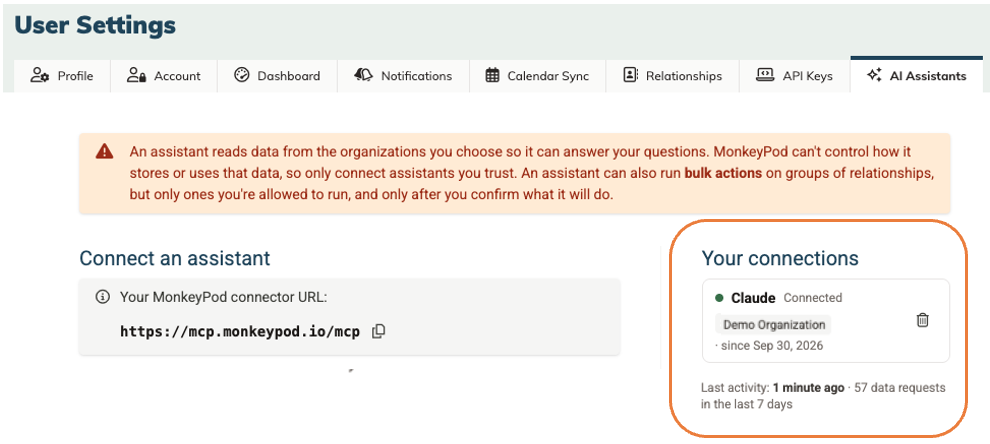
To stop an assistant from accessing your MonkeyPod, click the trash can icon next to that connection. This deletes the connection and cuts off access immediately. Removing the AI Connector from inside your assistant is a good idea too, but revoking the connection in MonkeyPod is what guarantees access is shut off.
A few things to know:
- You might see more than one connection for the same assistant: each time you set up the AI Connector (for example, on claude.ai and in Claude Code), MonkeyPod creates a separate connection.
- Connections are personal: you can only see and revoke your own connections. Admins can't see or revoke other users' connections.
- Unused connections expire on their own: if a connection goes unused for about 30 days, it stops working and you'll need to reconnect.
Frequently Asked Questions
Is this secure?
Yes. Connections use the same secure sign-in standard (OAuth) many apps use when you "Sign in with Google." Your assistant never sees your MonkeyPod password and uses only your existing permissions. Nothing is shared until you personally sign in and approve the connection on MonkeyPod's own approval screen. You can revoke access at any time. Any change your assistant makes (adding a relationship, recording a donation, or running a bulk action) requires your explicit approval of a preview first.
I don't see the AI Assistants tab in my User Settings. Why not?
The AI Assistants tab is available to users in organizations on an Enterprise subscription. If your organization is on Enterprise and you still don't see it, reach out to our support team. (Your MonkeyPod Admin can verify the plan by choosing My MonkeyPod > Billing from the main menu.)
My assistant says it doesn't have access to one of my organizations. What happened?
Most likely, that organization wasn't checked when you initially approved the connection. Just disconnect and then reconnect MonkeyPod from within your assistant's settings. You'll see the approval screen again and can select which organizations to access. If that doesn't do the trick, make sure the organization is on an Enterprise plan and that you're still an active user there.
My assistant is showing an error about an unknown tool, or it's missing something new. What should I do?
AI assistants remember the list of available tools from when you first connected, so after an update they may not pick up the changes. Disconnect and reconnect MonkeyPod in your assistant to refresh the list.
Why am I asked to approve the connection again?
You'll see the approval screen every time you connect or reconnect, so you always know exactly which assistant you're sharing with and which organizations you've chosen. If MonkeyPod updates the data-sharing information on that screen, you'll be asked to review it again.
Why can't my assistant add relationships or record donations?
Your assistant remembers the list of available tools from when you first connected. If you connected your assistant before this functionality was added (November 2026), disconnect and reconnect MonkeyPod in your assistant to pick up the new options.