
How to Take Registrations for Fundraising Events
Planning a fundraising event like a golf outing or a benefit dinner? You can now take registrations right from your MonkeyPod fundraising pages. You just setup a donation option with the relevant details (including a cap on registration totals), and add that donation option to a MonkeyPod fundraising page. Supporters can then register on the page, choosing how many spots they'd like, and submit their details and payment. Every payment lands in your books automatically, with the deductible and non-deductible portions already sorted out.
Designed for fundraising events. This feature is built for events where part of each gift is tax deductible, like benefit dinners, golf outings, and simple ticket sales. It isn't full event management or ticketing software, so there's no reserved seating or multi-date scheduling. Check out MonkeyPod's Ticket Tailor integration if you need fuller ticketing functionality.
How do I set up a donation option for my event?
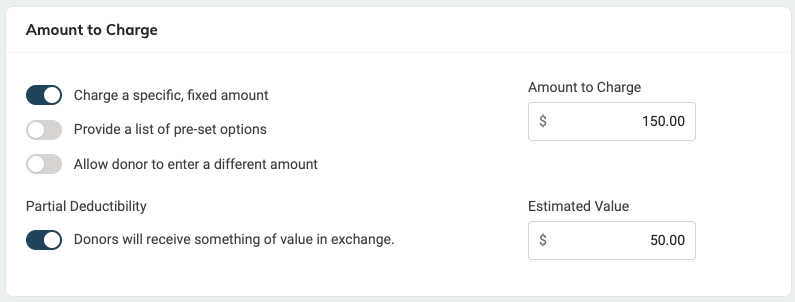
Let's say you're having a golf tournament fundraiser. Each entrance fee is $150, and the included greens fees have a value of $50. The tournament can accommodate 100 people, and your team has decided to limit each registration to 4 spots. Here's how you'd set that up:
- From the Fundraising menu, choose Donation Options.
- Select Add a donation option (or select the edit icon next to an existing option).

- Fill in the Basics (name, description, and image) so supporters know what they're registering for.
- Under Amount to Charge, select Charge a specific, fixed amount and enter the price per registration.
-
Under Partial Deductibility, turn on Donors will receive something of value in exchange and enter the Estimated Value for one registration (for our example, $50 for greens fees).
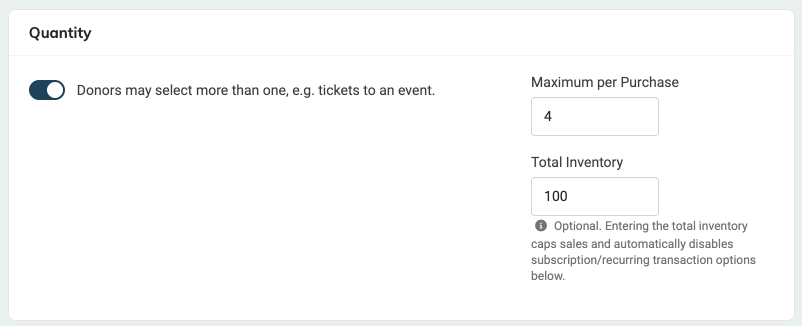
- Next, in the Quantity section, select Donors may select more than one to allow donors to pick a quantity. Optionally, set limits here:
- Maximum per Purchase: the maximum quantity a supporter can choose in one gift. Leave it blank for no maximum. (For our example, we're setting a maximum of 4 per registration.)
-
Total Inventory: the total number available . Leave it blank for unlimited. Once you enter a number, the number remaining will be displayed here, and supporters will see on the fundraising page when the number gets down to 10 or fewer. The donation option will appear as "sold out" once the limit is reached.
-
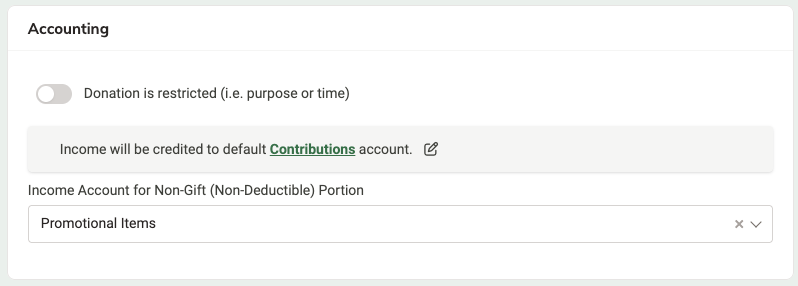
Under Accounting, income will be credited to your default account, which you may change here if needed. Then select the Income Account for Non-Gift (Non-Deductible) Portion, where the value of what supporters receive will be recorded. In our example, this would be the $50 greens fee.
- Select Save.
-
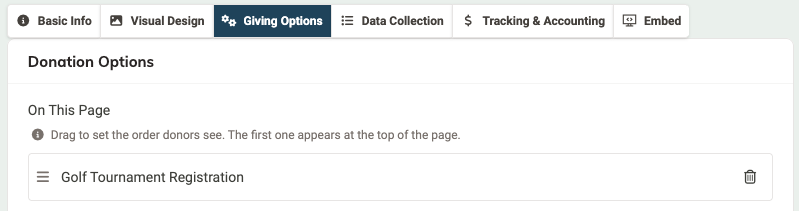
Now create or edit the fundraising page (Fundraising > Fundraising Pages) where you'd like to offer this registration, and select the donation option under the Giving Options tab. Want to give people the option to donate in addition to the registration? You can select a general donation option here too, alongside the registration on your fundraising page.
Finish up the rest of the details for the fundraising page, and you're good to go!
Note: When you set a Total Inventory, the donation option can cannot be setup as a recurring transaction. MonkeyPod turns off the monthly and annual choices under Subscriptions / Recurring Transactions so no one is charged for a new registration every month.
Changing your limits later
Need to open a few more seats? Just edit the donation option (Fundraising > Donation Options) and raise the Total Inventory amount. You can't set it lower than the number already registered, so nobody who has already signed up loses their spot.
Important! Changes to a donation option take effect right away on every Fundraising Page that uses it.
What do supporters see on my fundraising page?
Once you add the option to a fundraising page, supporters who select it see a Quantity option to choose how many seats or registrations they want.

- Per-purchase limit: the Quantity picker stops at your Maximum per Purchase.
- Low availability: when 10 or fewer remain, the page lets supporters know how many are left.
- Sold out: once every spot is taken, the option still appears but is marked Sold out and can't be selected.
- Value received: supporters see a note explaining the estimated value of what they're receiving per registration, and that it reduces the tax-deductible portion of their gift.
If your page lets donors select more than one donation option, supporters can register for your event and add a separate donation in the same checkout. For example, they could register 2 people for the event and add $100 to your general fund.

New to fundraising pages? Check out How to Make a Fundraising Page to get started.
How do I record a registration by hand?
Some supporters will pay by check or at your office. You can record those registrations manually so your counts stay accurate.
- Choose Fundraising > Record a Donation to record the donation as usual (see How to Record a Donation).
-
Under Optional, select Donation option and choose your event option and quantity.
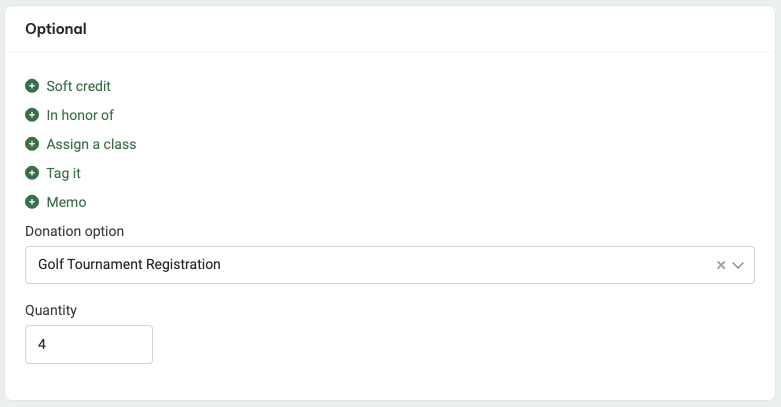
- MonkeyPod fills in Value of Goods or Services Received by Donor based on the quantity (for example, 3 registrations × $50 = $150). You enter the total gift in the Amount field
- Select Save when all donation details have been entered.
Note: The same limits apply here. MonkeyPod won't let you record more than the Maximum per Purchase or more than what's left. Save As Recurring isn't available for an option with a Total Inventory.
How do I see who's registered?
Assuming this donation form is unique to the event, choose Relationships > New Search from the main menu. Setup a search to find supporters who gave through the desired donation option: choose Gave via donation option as the criteria, select the donation option for the event, and set the appropriate time frame (if necessary). Click View Matching Relationships to view those who registered.

How do I know who else is covered if someone chooses multiple seats/tickets/registrations?
The registration will appear under the name of the person who submitted it. You can use custom attributes to ask for names of others.
What happens when a registration is refunded or deleted?
MonkeyPod counts every recorded gift that uses the donation option, whether it came through a fundraising page or was entered by hand.
- Deleted gift: the registrations go back into your available count.
- Full refund: the registrations go back into your available count.
- Partial refund: the count doesn't change. If you'd like to free up a spot, edit the option and raise the Total Inventory.
Frequently Asked Questions
Can I use this to sell tickets to my gala or other event?
Yes! If you just need a simple way to sell tickets and part of each registration is a tax-deductible gift, this is a great fit. For performances, classes, or events where nothing is tax deductible, see the next question.
What if my event isn't a fundraiser, or I need reserved seating or multiple dates?
This feature is built for fundraising events, not full event ticketing. For things like a theater run with several performances, assigned seats, or admission that isn't a donation at all, we recommend a dedicated platform. MonkeyPod connects with Ticket Tailor and Eventbrite, so those sales still record automatically. See Learn About Integrating Event Ticket Sales with Your MonkeyPod.
Why don't I see the Quantity section on my donation option?
Quantity only appears once Donors will receive something of value in exchange is turned on under Partial Deductibility.
Do supporters get a scannable ticket or QR code?
Not currently. Supporters get your usual donation receipt, which lists the value of what they received. You can check registrations against your list in MonkeyPod at the door.
Does this work with older Donation Forms (Embeds)?
No. For quantity selection, embed a fundraising page instead. See How to Embed a Fundraising Page on Your Website.