
How to Use MonkeyPod's Ticket Tailor Integration
MonkeyPod's Ticket Tailor integration brings your ticket sales into your nonprofit accounting automatically — so the people who buy tickets land in your contacts, the income and donations land in your books, and you have a clear record of who's coming to your events. This guide walks you through how it works.
For setup instructions, see Installing & Configuring MonkeyPod's Ticket Tailor Integration.
What the Ticket Tailor integration does
Once the Ticket Tailor integration is connected, MonkeyPod listens for activity in your Ticket Tailor box office and reflects it in your MonkeyPod in near-real time. For each ticket order, MonkeyPod will:
- Add the buyer as a relationship if they're not already in your records (based on email address).
- Add the attendees as relationships (if needed), and link them to the buyer with a "Bought a ticket for…" connection.
- Record transactions including sales for orders (including sales tax and applicable fees), donations (recorded separately from sales in the same order), and refunds. Transactions are tagged with the event tag.
- Assign a role and optional tag for the buyer and attendees based on your setup choices, which can be customized for that event or ticket type.
- Track check-ins and voids as interactions for each attendee's record (if you've enabled the optional webhook for that).
What MonkeyPod records automatically
While Ticket Tailor will let you accept payments through several different methods, MonkeyPod will auto-record a sale only if:
-
The buyer paid through a Stripe account you've connected to MonkeyPod (see the Stripe Setup tab in MonkeyPod's Ticket Tailor app),
OR
- The order is marked as paid offline (cash, check, "pay at the door," etc.)
Everything else — sales paid through a different Stripe account, PayPal sales, or anything MonkeyPod doesn't recognize — still shows up in the Orders tab so you can see it, but the income won't be posted to your books automatically. You'll need to manually add sales transactions for those. Hover your mouse over the Unrecorded badge for the order to see why it wasn't recorded.
Offline orders
When a buyer chooses "pay later" or you mark a sale as offline in Ticket Tailor, MonkeyPod captures the order right away but waits to post the income until you mark the payment as received in Ticket Tailor. At that point, MonkeyPod posts the sale and debits your "Cash / Undeposited Funds" account (or whichever account you've designated for the connection).
Why not just auto-record everything?
When a sale goes through your MonkeyPod-connected Stripe account, MonkeyPod can look up the exact processing fees Stripe charged and break them out cleanly in your books. It can also automatically reconcile against your Stripe payouts. For sales that don't go through that same Stripe account, MonkeyPod has no way to look those details up, and the receivable would never auto-clear in your bank reconciliation. Capturing the order without posting the income keeps your books accurate.
Viewing your events in MonkeyPod
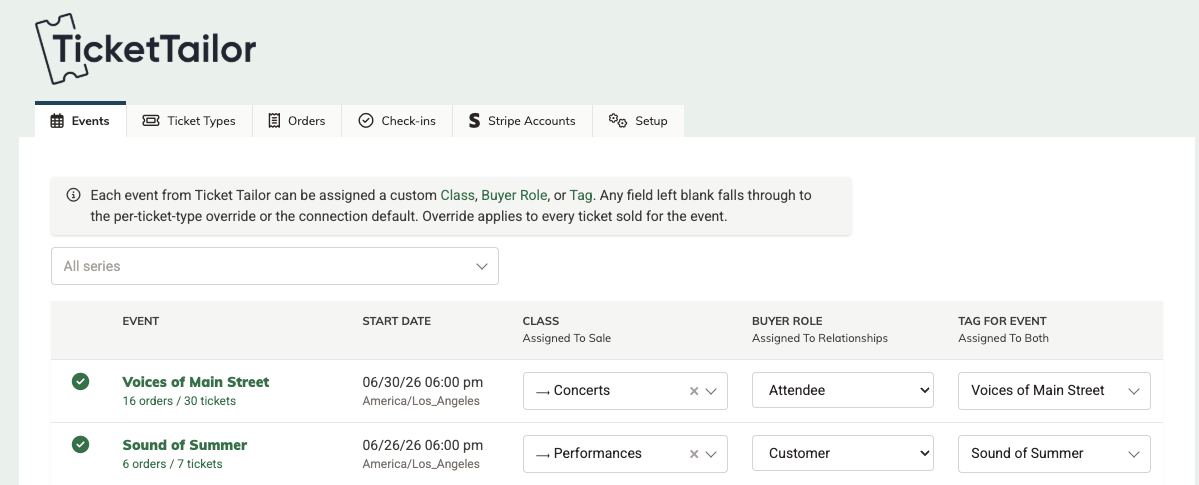
The Events tab of the Ticket Tailor app lists all active events in your Ticket Tailor account.
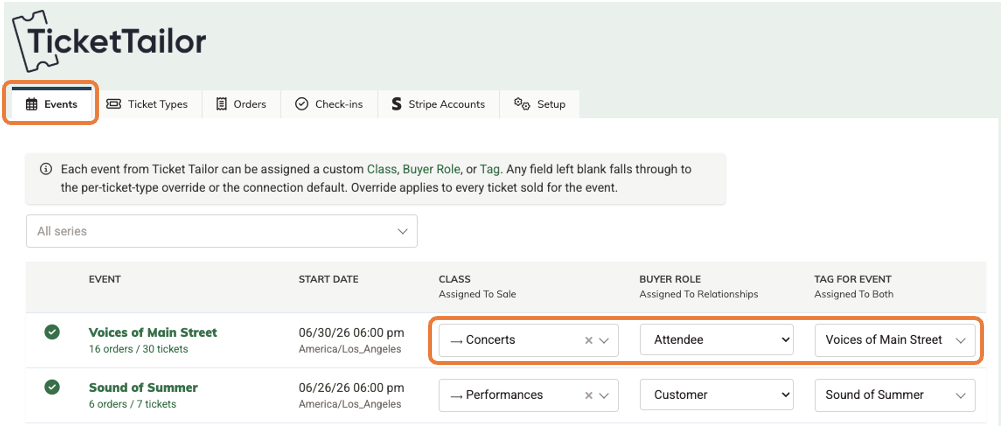
For each event, you'll see the number of orders placed and tickets purchased, as well as settings to override the default class, role, and tag assigned to transactions and/or relationships related to that event. These classes, tags, and roles are based on the defaults configured in the setup. They can be overridden here so that orders from a particular event can use a custom class, role, or tag.
To navigate to find details about the event:
- Use the filter at the top of the page to filter for events in specific series.
- Select the event name to view the event directly in Ticket Tailor
- Select # orders/#tickets below the name to see the order details in the Orders tab.
Viewing your Ticket Tailor orders in MonkeyPod
Select the Orders tab to view all the orders that have come through from your Ticket Tailor account.
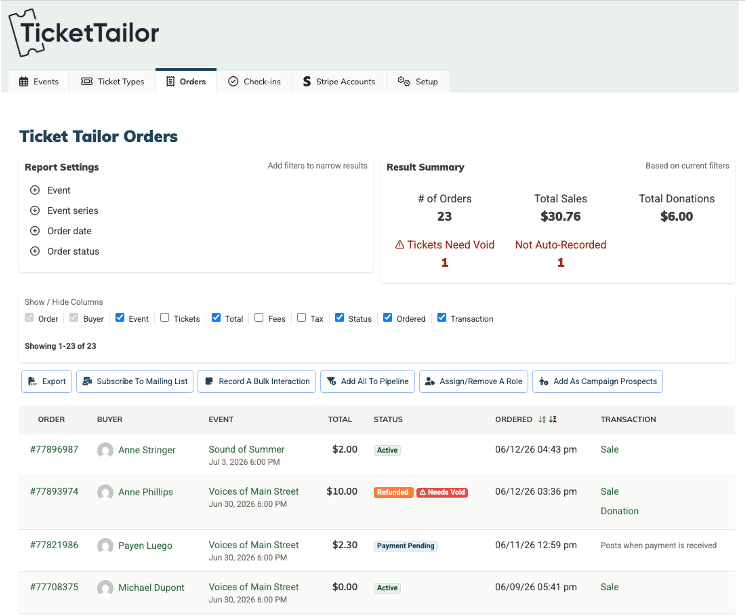
Use the options at the top to filter by event, event series, order date, and order status. The Results Summary at the top updates to report on the subset of orders that match your filter selections.
Use the Show/Hide Column options to show only the information that is important to you.
Order Status
The Status column shows important details about the current state of the order. Examples include:
- Active - all's well. The order has been received.
- Payment Pending - The buyer chose to pay later or with cash/check. This will update and record a transaction when the order is marked as paid in Ticket Tailor.
- Refunded - The order was refunded in Ticket Tailor and the related refund transactions were recorded in MonkeyPod.
- Needs Void - A refund was processed in Ticket Tailor, but a related ticket has not been voided. Return to the Ticket Tailor order to void that ticket.
- Cancelled - A ticket was cancelled and voided.
- Test - The order was processed using a test mode in Ticket Tailor. Use the delete option next to the "Test" label to delete the order as well as the related transaction(s) in your MonkeyPod.
Tip: Orders that weren't auto-recorded will be clearly badged with the reason. Hover over the badge to see more detailed information, if available. Common reasons:
- PayPal: the buyer paid through PayPal. Reconcile this manually from your PayPal account and post a sale in MonkeyPod to match.
- Different Stripe account: the event in Ticket Tailor is configured to route payments to a Stripe account other than the one you've connected to MonkeyPod. To fix going forward, enter the API key for the Stripe account used for the event into the Stripe Accounts tab in the MonkeyPod app.
- Unsupported payment method: a payment method MonkeyPod doesn't yet recognize. Post a Sale manually.
- Gift card: the order includes a gift-card purchase. Gift-card support is on our roadmap; for now, please record these manually.
Viewing your Ticket Tailor Check-in Attendance report
Select the Check-ins tab to view the Check-in Attendance report. Filter by event, event series, and check-in date range, and run bulk follow-up actions on the people who actually showed up — for example, "thank you for attending last weekend's gala."
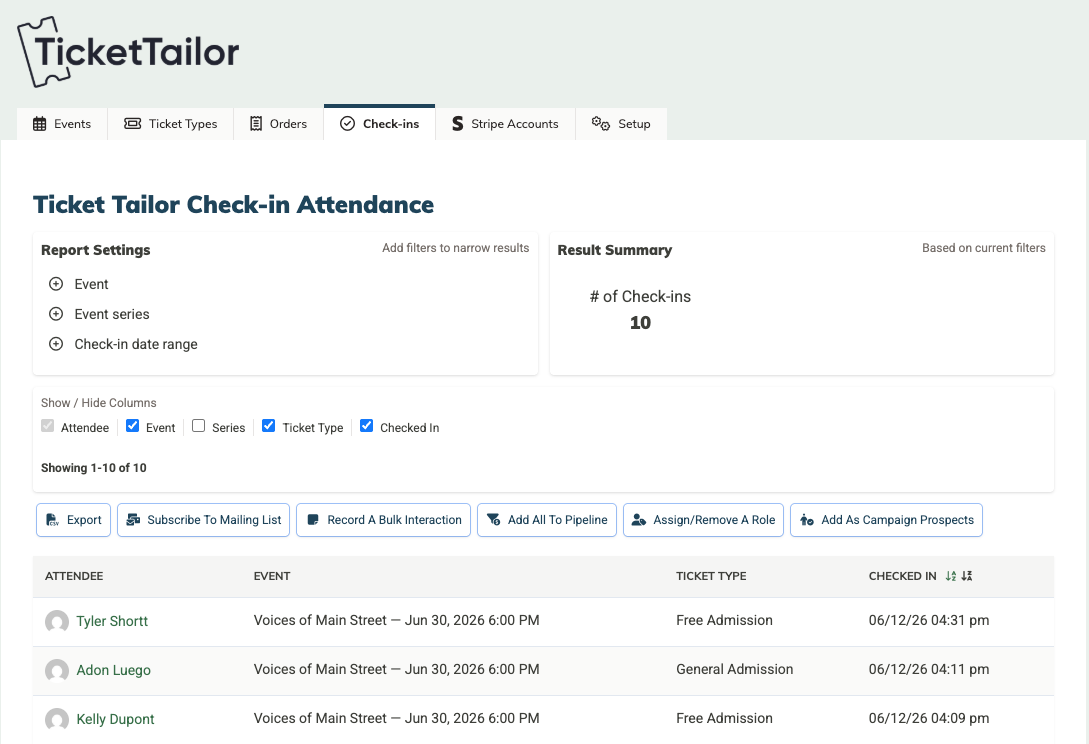
Important! The Check-in report only has data if you subscribed to Ticket Tailor's optional issued_ticket.updated webhook during setup. If you skipped that, you can add it later in Ticket Tailor's webhook settings and MonkeyPod will start tracking check-ins from the moment you add it. See Setting up your Ticket Tailor connection.
How to use bulk actions to work with buyers or attendees
Both the Orders tab and the Check-ins tab let you perform bulk actions on the relationships in the report. For example, after an event, you might want to stay in touch with everyone who bought a ticket or showed up in person. To do so, use the filters to narrow down the results to a specific event, series, date, and/or order status, as needed. Then use the bulk action buttons to work with the relationships—like adding all attendees to an email list, campaign or pipeline in one step.
Bulk actions include:
- Subscribe to a mailing list
- Record a bulk interaction
- Add all to a pipeline
- Assign/remove a role
- Add as campaign prospects for use with Campaign Tracker (if installed)
- Export a filtered list of buyers or attendees, with the columns you've chosen to display, to a spreadsheet. You can include additional relationship details as well. You might use this to report to hand off a list to a caterer or venue, or to create a mail-merge for handwritten thank-you notes.
A few notes on which report to use for bulk actions:
- Use the Orders tab when you want to act on the people who bought tickets — useful for financial follow-up, donor cultivation based on purchase history, or any scenario where the buyer relationship matters most.
- Use the Check-ins tab when you want to act on the people who actually showed up — useful for attendance-based follow-up, interaction logging, and reporting that needs to reflect real participation rather than registrations.
How to handle refunds, cancellations, and voiding tickets
Refunds
When you process a refund in Ticket Tailor (whether full or partial) MonkeyPod automatically posts a matching return transaction against the original sale. Partial refunds work the same way as full ones, and if a buyer added a donation tip alongside their ticket purchase, MonkeyPod refunds the sale portion first and only touches the donation if the refund exceeds the sale's total.
Cancellations
Cancelling an order in Ticket Tailor (without a refund) marks the corresponding order in MonkeyPod as cancelled but leaves the sale untouched — the income still happened, the buyer just isn't using the ticket. If the cancellation comes with a refund, both effects happen together.
The "Needs Void" warning
Ticket Tailor's refund dialog has a "Void items" checkbox that is unchecked by default, which means it's easy to refund someone's money but leave their ticket scannable — they could still show up at the door. MonkeyPod watches for this and flags affected orders with a "Needs Void" badge in the Orders report so you can go back to Ticket Tailor and void the ticket(s) manually. The summary band at the top of the report shows the org-wide total.
Voiding without refunding
If you void a ticket in Ticket Tailor without a refund (someone gave up their ticket as a donation, for example), MonkeyPod records that as a "Voided ticket" interaction on the attendee's contact record but doesn't change the sale — the income is still real.
How to customize classes, roles and tags for specific events
Your Ticket Tailor integration in MonkeyPod was configured with default settings for the class, relationship role and tags that should be associated with orders and buyers/attendees. You can override these defaults to have custom settings for any of your ticket types. To do so, select the Events tab and change the settings there for any of the available ticket types. Changes will impact new orders that arrive after you have made the customization. Existing transactions will not be modified.
How to customize items, classes and roles for tickets types
Your Ticket Tailor integration in MonkeyPod was configured with default settings for the item, class, and relationship role that should be associated with orders and buyers/attendees. For example, let's say you're a theater company, and you reserve "free" ticket types for your program participants. You might want to keep their role as "Program Participant" rather than having them flagged as "Customers", which was your default role for buyers.
To override the default for any of your ticket types:
- Select the Ticket Types tab.
- Select the event.
- Change the settings for any of the available ticket types.
Changes will impact new orders that arrive after you have made the customization. Existing transactions will not be modified.
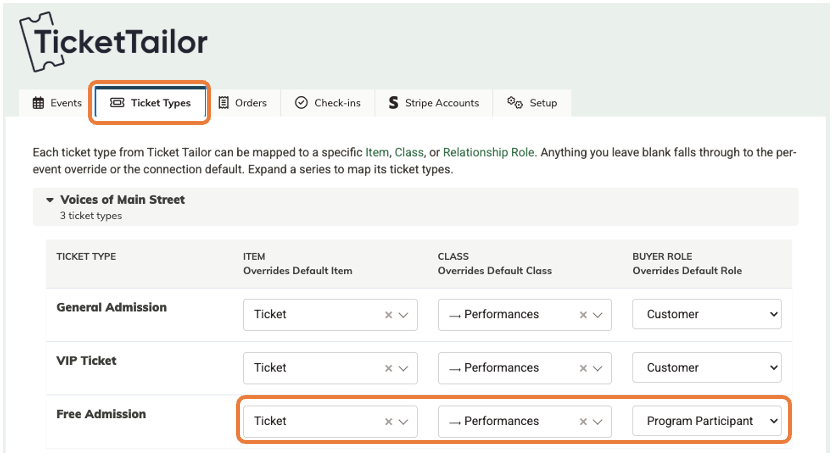
Ticket types are pulled in directly from your Ticket Tailor account. If you want to add or change ticket types, that is done in Ticket Tailor.
Dashboard widgets for quick insights
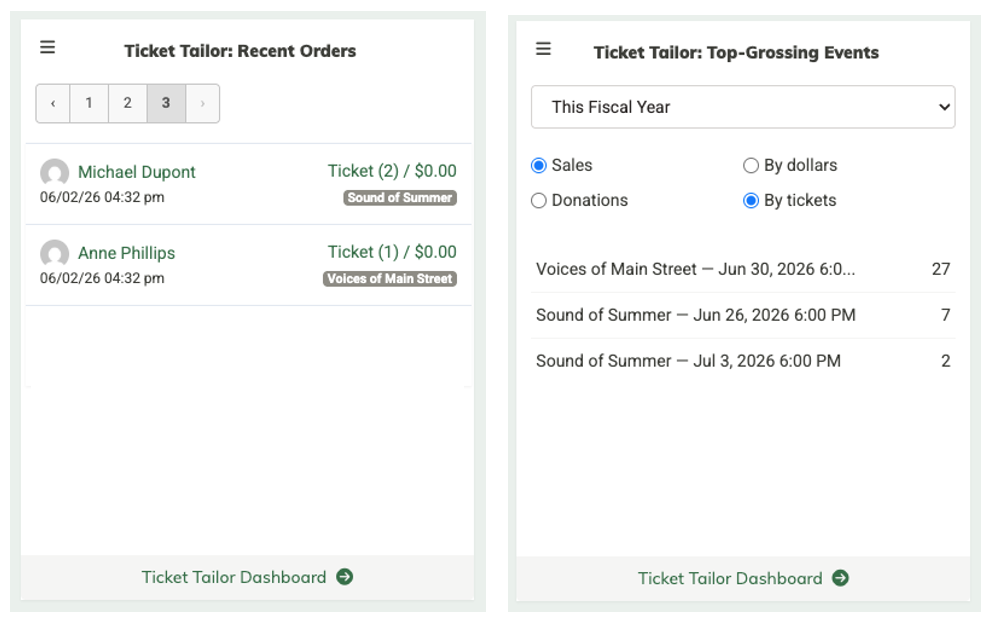
MonkeyPod's Ticket Tailor integration includes two dashboard widgets to help you keep tabs on your Ticket Tailor activity.
- The "Top-grossing events" widget shows your highest-revenue events at a glance, so you can spot which shows are performing best without running a report. You can also toggle the widget to view by ticket sales or donation amounts.
- The "Recent Orders" widget lets you keep an eye on orders as they come in.
To install them, select the Customize Dashboard button at the top of your dashboard, and select Ticket Tailor: Recent Orders and/or Ticket Tailor: Top-Grossing Events from the list under "Other Available Widgets".
Frequently Asked Questions
For setup and connection questions see Installing & Configuring MonkeyPod's Ticket Tailor Integration.
An order shows up as "Unrecorded" but I'm sure I have the right Stripe account connected.
Hover your mouse over the Unrecorded badge for the order to see if MonkeyPod provides specific details.
Open the order in Ticket Tailor and look at which event it's for. Then on that event's settings page, check the payment-method configuration. Ticket Tailor lets you override the payment method per event, so it's possible one specific event got pointed at a different Stripe account at some point. Fix it on that event, and future orders for it will auto-record.
I'm not seeing check-in data even though tickets have been scanned.
Check that you added the issued_ticket.updated webhook subscription in Ticket Tailor — it's optional and easy to miss during setup. The Check-in Attendance report shows a reminder banner if the report stays empty with no filters applied. (If you've filtered the report and just happen to have no matches, the banner stays hidden — a filtered-empty result usually means "no check-ins for that specific event" rather than a missing subscription.)