
Learn About Your Statement of Cash Flows
Your Statement of Activities says you ran a surplus this year. So why is there less money in the bank than there was in January? The Statement of Cash Flows answers that question. It shows where your cash actually came from and where it went during a period, grouped into operating, investing and financing activities.
Along with the Statement of Activities, Statement of Financial Position and Statement of Functional Expenses, it's one of the standard financial statements auditors, funders and boards expect to see for a nonprofit organization. Your MonkeyPod builds it for you from the transactions you've already recorded.
Need a forward-looking view instead? The Statement of Cash Flows looks back at a period that has already happened, showing the cash that actually came into and went out of your accounts. To project your cash over the coming months, see Learn About Your Cash Flow Forecast.
This article covers:
- What can the Statement of Cash Flows tell me?
- Where can I find the Statement of Cash Flows?
- What are my options for configuring the report?
- What counts as cash on this statement?
- How do I change how an account is treated on the statement?
- What if the report flags something in my setup?
- How can I save my report or have it emailed to me?
What can the Statement of Cash Flows tell me?
Your surplus or deficit and your change in cash are rarely the same number. That's because your books record income when you earn it and expenses when you owe them, not when the money actually changes hands. A $5,000 grant you've been awarded but haven't received yet counts as income, but it isn't in the bank. A bill you haven't paid counts as an expense, but the cash is still in your account.
So the statement starts with your surplus or deficit and then works out, line by line, how much of it turned into real cash. Accountants call this the indirect method. The result is broken into three sections:
- Operating activities: cash from running your programs and day-to-day work. This is where you'll see the effect of donations and invoices you haven't collected yet, bills you haven't paid yet, credit card balances and deferred revenue.
- Investing activities: cash spent on or received from long-term assets, like buying equipment or a building, or buying and selling investments.
- Financing activities: cash from borrowing and repaying, like drawing on a line of credit or making loan payments.
At the bottom, the three sections add up to your Net increase (decrease) in cash, which bridges your Cash at beginning of period to your Cash at end of period.
For example, say the Riverside Arts Center finished the year with a $40,000 surplus, but its bank balance actually went down by $15,000. The Statement of Cash Flows shows why: $20,000 in grant installments is still receivable (operating), $25,000 went to a new kiln (investing), and the center paid down $10,000 on a loan (financing). ($40,000 − $20,000 − $25,000 − $10,000 = −$15,000.)
Where can I find the Statement of Cash Flows?
Choose Reports > Cash Flows from the main menu. You'll find it under Accounting & Finance, alongside your other financial statements.
What are my options for configuring the report?
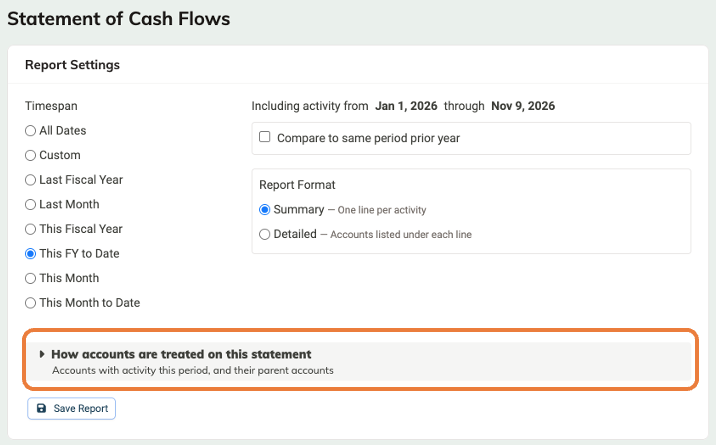
Use the Report Settings panel to set up the statement.

- Timespan: choose the period the statement covers, such as This Fiscal Year, Last Month or a Custom date range.
- Compare to: add a comparison column with Compare to same period prior year. For monthly timespans, you can also choose Compare to prior period to see this month next to last month.
- Report Format: choose between:
- Summary: one line per activity, such as "(Increase) decrease in accounts receivable." This is usually the right choice for a board packet.
- Detailed: the accounts that make up each line are listed underneath it, which is handy when you're reviewing the numbers with your bookkeeper or auditor.
- How accounts are treated on this statement: expand this section to see each balance-sheet account with activity in the period and how it's classified. More on this below.
When you're ready to share, click Download Excel to export the statement.
A note on "This" and "Last" timespans: these are relative to when you run the report. A saved report set to "Last Month" will always show the month before the one you run it in. To lock in specific dates, use a Custom timespan. (Details about how to save a report are below.)
What counts as cash on this statement?
Cash includes your Bank and Undeposited Funds accounts, except any you've marked as an Investment portfolio. A note at the bottom of the report reminds you of this.
Why the exception? Under GAAP, stocks, bonds and mutual funds aren't cash equivalents. If your organization tracks a brokerage account at market value in a Bank account, leaving it as cash would make every market swing look like cash coming in or going out. Marking it as an Investment portfolio moves its activity to the investing section and backs out gains, losses and reinvested dividends from operating activities so they aren't counted as cash.
Tip! Holding donated stock or an investment account in a Bank account? Mark it as an Investment portfolio before you share this statement with your auditor.
How do I change how an account is treated on the statement?
Good news: you don't need to set anything up to start using this report. Every balance-sheet account starts with a sensible default based on its subtype:
| Account subtype | Default | Other choice |
|---|---|---|
| Bank, Undeposited Funds | Cash or cash equivalent | Investment portfolio |
| Accounts Receivable, Other Current Asset | Operating activity | Investing activity |
| Fixed Asset, Other Asset | Investing activity | Operating activity |
| Accounts Payable, Credit Card, Current Liability, Deferred Revenue | Operating activity | Financing activity (for loans and lines of credit) |
| Long-Term Liability | Financing activity | Operating activity |
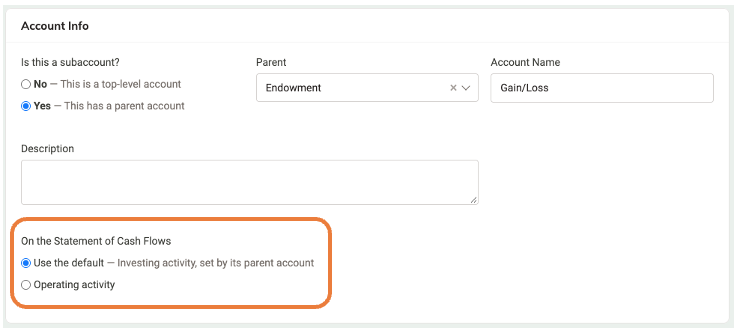
Sub-accounts follow their parent account unless you set them differently.
You can change an account's treatment in either of two places:
From the report
-
In Report Settings, expand How accounts are treated on this statement.
- Select the pencil icon next to the account you want to change.
- Choose the new treatment from the dropdown and select the checkmark to save it, or the ✕ to cancel.
From the account's settings
- Go to Finance > Chart of Accounts and select the Edit settings icon on the account's row.
-
Under On the Statement of Cash Flows, choose a treatment, or Use the default to go back to the one set by the account's subtype.
- Select Save.
Either way, the setting belongs to the account, so it applies every time anyone runs the statement.
One thing to know: changing an account's treatment requires permission to edit account financials. Users without it can see the setting but can't change it. See Overview of User Roles and Permissions.
What if the report flags something in my setup?
If something in your chart of accounts looks like it might throw off the statement, your MonkeyPod shows a warning at the top of the report. For example, it might point out a bank account that looks like an investment account, a current liability that looks like a loan, or a year with fixed assets but no depreciation recorded. Most warnings come with a one-click fix that updates the account's treatment for you.
These are suggestions, not errors in your books. If the account really is set up the way you want it, you can leave it as is.
How can I save my report or have it emailed to me?
Once your settings are just the way you like them, click Save Report and give it a name. It will appear in the Reports menu under Saved Reports for everyone with permission to view financial reports.
To have it land in your inbox automatically, load the saved report, select the calendar icon, and choose how often you'd like to receive it.

For example, a treasurer might subscribe to a monthly statement so it's ready for every finance committee meeting.
To rename or delete a saved report, first load the report, and then use the options at the bottom of the Report Settings panel.

Frequently Asked Questions
I'm new to nonprofit accounting. Can you explain what's on this report?
Sure! Think of it as telling a story about your bank balance:
- Operating activities: starts with your surplus or deficit, then adjusts for money that was earned or spent on paper but hasn't changed hands yet. If donors owe you more than last period, that's income you haven't collected, so it reduces cash. If you owe vendors more, that's an expense you haven't paid, so it increases cash (for now).
- Investing activities: money spent on or received from things you'll use for years, like equipment, or from investments.
- Financing activities: money borrowed or paid back.
- Net increase (decrease) in cash: the total of all three, which equals the change in your bank balance.
How is this different from the Statement of Activities and the Statement of Financial Position?
The Statement of Activities shows your income and expenses over a period. The Statement of Financial Position is a snapshot of what you own and owe on a specific date. The Statement of Cash Flows connects them, explaining how this period's activity and the changes in your balance sheet added up to the change in your cash.
Is this the same as the Cash Flow Forecast?
No. The Statement of Cash Flows looks back at cash that has already moved, in the format auditors expect. The Cash Flow Forecast looks ahead, projecting your cash over the coming months.
Do I need to set anything up before running it?
Not usually. Every account starts with a default based on its subtype. The one thing worth checking is whether any Bank accounts hold investments (like a brokerage account or donated stock). If so, mark them as Investment portfolio.
I bought equipment with a bill. Why doesn't it show up in investing until later?
The statement follows the cash. Equipment bought on a bill appears in investing activities when the bill is paid, not when it's entered.
We sold some equipment at a gain. Where should I record the gain?
You would typically book the gain to an Other Income account. That way the full sale proceeds are included in the report's section on investing activities.
Why can't I change how an account is treated?
Changing an account's treatment requires permission to edit account financials. If you can see the setting but can't change it, ask an Admin in your MonkeyPod.
How can I share this with my board or auditor?
Click Download Excel to export it, or save the report and subscribe so a fresh copy is emailed to you on a schedule.