
Learn About the Grant Report
If your organization relies on grants, sooner or later someone (a board member, a funder, your bookkeeper) is going to ask how much of a given grant you've actually received, and how much you still have left to spend. While you can see this information on each individual grant in your MonkeyPod, the Grant Report provides these answers for all of your grants in one consolidated report.
Where can I find the Grant Report in my MonkeyPod?
Choose Reports from the main menu, and look for Grant Report under the "Accounting & Finance" heading.

What can the Grant Report tell me?
The Results Summary at the top of the Grant Report page displays totals for the number of grants, total awarded, average award, and the largest award.

For each grant on your books, the report shows:
- Awarded on: The date the award was received.
- Awarded: the total amount of the grant.
- Received: the cash you've received against the grant to date.
- Released: the amount released from restriction to date. This only applies to restricted grants.
- Remaining: the balance still held in the grant's restricted net asset account (Remaining = Awarded - Released). This only applies to restricted grants.
A row of totals at the bottom adds everything up across all the grants shown in the report.

Select the Visualize tab to see charts based on the report, including the amount of restricted funds released and remaining; as well as the amount received and outstanding for each grant.

A note about restricted vs unrestricted grants
Restricted grants come with donor- or funder-imposed conditions (like a specific program, time period, or purpose) that must be satisfied before the funds can be freely spent. Nonprofit accounting rules require these funds to stay classified as restricted net assets until that happens, so "releasing" them is how you formally recognize that the conditions have been met and the money is now available for general use. Until a release occurs, the report tracks the unmet portion through the Released (funds freed from restriction so far) and Remaining (balance still restricted) columns.
General operating (unrestricted) grants are available to spend right away, so there's no restricted balance to release or track. You'll see a Gen Op badge in the Released and Remaining columns for those grants instead of a dollar amount.
What are my options for configuring the report?
Use the Report Settings panel to narrow down which grants you'd like to include in the report:
- Award Date: Select a relative timespan or specific date range to include only grants awarded within that window.
- Grant type: Choose All grants, Restricted, or General operating (unrestricted) to filter by the type of funding.
- Remaining Balance: Choose whether to show All Grants or Only grants with restricted funds remaining to focus your report on just those grants that are still active.

Click the + icon for a filter to make a selection. The icon changes to a - icon when the filter set is expanded. Click that to collapse the filter set and clear any selections it contained.
What are my options to save, share or export this report?
Once you've set your filters, you have a few ways to save, share, and export the report:
-
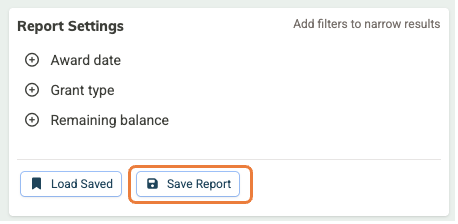
Save & share: Click Save Report to name and save your current settings. It will then appear under Saved Reports in your Reports menu, where other MonkeyPod users on your team with permission to view financial reports can access it.
-
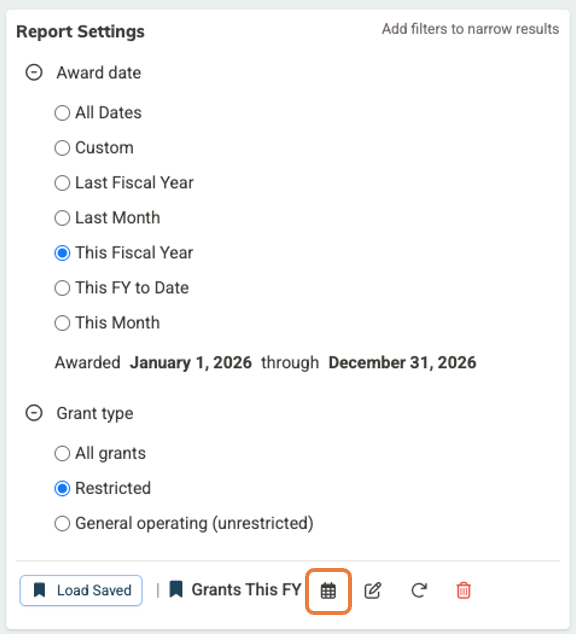
Subscribe: After loading a saved report, you can click the calendar icon to receive updated versions automatically. You can choose to have it sent daily, on the 1st or 15th of the month, or every Monday.
- Export: Click the Export button at the top of the Reports tab to download the report as an Excel (.xlsx) file.
How can I get the Grant Report on my Dashboard?
Add the Grants Snapshot widget to your MonkeyPod Dashboard to easily keep an eye on the total number and amount of available restricted grants, as well as the amount awarded this fiscal year in both unrestricted and restricted awards. To add it to your Dashboard, select the Customize Dashboard button at the top of the Dashboard, select the + icon to add the Grants Snapshot widget, and use the handle to drag it to the desired position in the list of widgets.

Frequently Asked Questions
What does "Received" show if I haven't been paid the full grant amount yet?
Received reflects the cash you've actually received against the grant to date, so a grant that's only partially paid will show a Received amount lower than what was Awarded.
I'd like to record a payment or release funds for one of the grants in the report. Can I do that here?
To record a payment or release funds for a grant, click the grant title in the report to open its detail page. There you can record payments, track expenses, and release restricted funds. See How to Record a New Grant Transaction and How to Release Grant Funds for more on those steps.